
AI Tutorials
Build an AI Bot on Bale: Step-by-Step with Python and n8n
Create a Bale bot in BotFather, run a Python echo bot, connect a language model, move to webhooks or n8n, respect Bale's limits and host the whole bot inside Iran.
Read More
Create a notebook, add sources, check citations, and make Persian audio overviews, quizzes and slides in NotebookLM, now Gemini Notebook, with limits, Iran status and an open-source option.
ZharfAI TeamNovember 16, 202630 minutes
NotebookLM is Google's research notebook that answers from the sources you give it: you put PDFs, Google Docs, web pages, YouTube videos or audio files into a notebook, ask questions, and get answers with citations that point back to sentences in those sources. You can also turn the same sources into audio overviews, quizzes, flashcards, slide decks or infographics. The workflow has four steps: create a notebook, add sources, ask in the Chat panel, and open every citation to confirm the claim is really in the source.
On July 16, 2026 Google renamed the tool Gemini Notebook and said it remains the same standalone product. According to the Workspace announcement, automatic redirects keep old links and shared notebooks working, and mobile users may need to update the app. This guide uses both names, because most people still search for NotebookLM.
This tutorial was checked on November 16, 2026 against Google's official Gemini Notebook help pages, the Google blog, and the Google Terms of Service. It is written for teachers, students, language learners and office workers who want exact steps and an honest account of where the tool goes wrong. If you searched for "notebook lm", "Google NotebookLM tutorial" or "Gemini Notebook tutorial", this is the same product.
Short answer: no. This section states what Google's own pages say, with a source for each point. It is not legal advice.
So Gemini Notebook is not a service Google offers in Iran, and this guide gives no method for getting around that. The tutorial sections below are for readers who live in a supported country. If you are in Iran and want the same experience, asking questions of your own documents and getting cited answers, the "open-source alternative" and "organisational version" sections further down this page describe running the same pattern on your own computer or servers; read the open-source section's note on where its software is downloaded from. To compare domestic services with foreign tools, use the criteria in our guide to choosing between Iranian and foreign AI tools, and if you need a language model over an API, our guide to AI API access in Iran compares the lawful options.
A notebook is the set of sources for one project, and each notebook is independent: the create-a-notebook guide says the tool cannot read across several notebooks at once. Make one notebook per course, case or project.
In the Sources panel click Add sources and pick the type. The add sources guide lists every type and its limits:
| Source type | What is imported | Key limit |
|---|---|---|
| PDF, Word (docx), plain text, Markdown, CSV, PowerPoint (pptx), ePub | The file's text | Up to 200 MB and 500,000 words per file |
| Google Docs, Slides and Sheets from Drive | The file content, re-synced every few minutes | Footnotes and comments are not imported; Slides up to 100 slides; Sheets up to 100k tokens; several tabs become one source |
| Web URL | The page's text only | No images, embedded videos or nested pages; paywalled pages unsupported |
| YouTube | The caption text only | Public videos with captions only; videos under 72 hours old may fail; deleted videos leave the notebook within 30 days |
| Audio file (mp3, wav, m4a and many more) | A transcript made at import | Audio without speech is unsupported, and low-quality audio may fail to import |
| Image (jpg, png, heic, webp and others) | The image | Google says some image types may not work as well |
| Copied text | A note that counts as a source | You set its title when you create it |
| Play Books | Text only | Purchased, eligible titles only; depending on the publisher, outputs from such a notebook may not be downloadable |
Behaviour worth knowing in advance:
The chat guide says the tool uses direct quotes, text and images from your sources as citations. Hover over any citation to see the full quoted text, and click it to open the source at that spot. The right habit is to make that click for every claim that matters.
To set the answer style, click Configure Chat in the Chat panel and pick one of three styles: Default for research and brainstorming, Learning Guide for learning a new concept, and Custom to set a role or tone. Set the response length in the same place.
Good questions in this tool share three traits. They name the source, because Google says naming sources narrows the search when many are selected. They ask for verbatim quotes. And they say what to do when the answer is missing. For example:
In the source "Lease contract 2026", list the termination conditions. For each one,
give the clause number and the exact sentence. If the contract is silent on a point,
write "not in the source".
For writing more precise requests, see our prompt writing guide. A few other tools in the same panel:
Know one recent change. The same guide has a section on agentic capabilities: chat can search the web, run code, and create files such as charts, Word documents, Excel workbooks and PowerPoint decks, "with or without sources". Google calls these functions experimental and warns that they can do unexpected things. So "answers come only from your sources" holds for normal question answering, not for everything you can do in Chat. When the tool has searched the web, open citations with extra care.
Every output is made in the Studio panel. Each has a pencil icon that opens a customisation panel before generation. Creating or deleting outputs requires edit access to the notebook, and outputs are generated in the background.
| Output | Main options | Download or export | Limit |
|---|---|---|---|
| Audio Overview | Deep Dive, Brief, Critique and Debate formats; language; length; focus prompt | Audio file download | |
| Video Overview | Cinematic, Explainer and Short formats; visual style; focus prompt | Video download | Sometimes takes more than 30 minutes |
| Mind Map | Made from its button in the Chat panel and kept as a note in Studio; clicking a node asks about that topic in Chat | Download | Not in the mobile app |
| Reports | Interactive or Document; templates for FAQ, study guide, briefing doc or a custom report | Export to Docs; tables via Export to Sheets | Customising a report is web-only |
| Data Table | A prompt describing the rows and columns you want | Export to Sheets; citations on the second tab | |
| Flashcards and Quizzes | Easy, medium or hard; prompt | Flashcards as CSV | |
| Slide Deck | Format, language, length, sources, prompt | PDF or PowerPoint (pptx) | 18+ only |
| Infographic | Visual style, prompt | PNG image | 18+ only |
What the table does not say:
Every output, including the voices, is AI-generated, and Google reminds users that it may contain inaccuracies or audio glitches. If you want to analyse the numbers in a data table further, the work moves into a spreadsheet; our guide to AI in Excel covers cleaning Persian data, Jalali dates and testing formulas.
Chat answers, reports and Audio Overviews can be produced in Persian, but several features are English-only. The output language page lists Persian among more than 80 languages and says study guides, documents, Audio Overviews, Video Overviews and chat answers follow that setting. The default is the preferred language of your Google Account; change it under Settings then Output Language.
| Area | Persian status | Key limit |
|---|---|---|
| Chat answers, reports, study guides | Persian is in the output-language list | Set the language in Settings |
| Audio Overviews | Can be generated in 80+ languages | The Longer length option and interactive mode are English-only |
| Video Overviews | Explainer and Short formats list Persian | Cinematic is English-only and 18+ |
| Uploaded audio files | Persian is in the transcription list | Low-quality audio may fail to import |
| YouTube videos | Only the caption text is imported | Import fails if the video language is unsupported |
| Slide decks | Language is chosen in the customisation panel | Read every Persian word on the slides |
| Menus and interface labels | Not confirmed | We found no page separate from the output language |
We found no page that documents the interface language, so the Persian edition of this guide gives each button's English label with a Persian equivalent beside it.
Many Persian documents are scans: old textbooks, office letters, signed contracts. In a November 13, 2025 announcement, Google added image sources and said you can upload "a photo of your hand-written notes or a brochure". The sources guide, however, warns that certain types of images may not work as well. We found no official page that explains how an image-only PDF, one without a text layer, is read, or how accurately scanned Persian script is recognised. So before you rely on a scanned document, run this test:
If the document fails, convert it to text before uploading. For a few key pages, such as a table of contents or one important table, our free Persian OCR tool reads one page at a time, is free for up to 6 pages a day and 3 an hour, and returns tables as tables. It sends the page to an AI service outside Iran for reading and does not keep the file, so do not use it for confidential documents. Paste the result into the notebook as Copied text from the add-sources window, and put a line such as "Page 12" before each page so citations map back to real page numbers. For a 300-page book this route is not practical; reading whole scanned archives belongs to the organisational version described near the end.
Say you teach eighth-grade science and want a lesson plan, a ten-question quiz and vocabulary cards for a chapter about atomic structure.
If you share the notebook with students, give viewer access and remember that chat view does not fully hide the sources. Slide decks, infographics and Deep Research are closed to users under 18, but on Workspace for Education accounts the service itself is open to all ages.
A student can use the same routine to prepare for an exam: one notebook per course with class notes, the lecturer's slides and any past questions you are allowed to use; the Learning Guide chat style; a question asking which concepts appear in past questions but not in your notes; and a quiz set to hard. The night before the exam, do not ask the tool to confirm "the right answer"; open the citation for every important answer and compare it with your notes.
The tool is not a language teacher, but it builds practice from sources you choose. A workflow for a Persian speaker learning English:
Know the limits: the tool does not assess your pronunciation, and if a grammar rule is not in your sources it may not answer a grammar question. For languages other than English, check the output-language list and the audio-transcription list separately.
Three points from Google's guide that are often missed:
For public sharing, set access to Anyone with a link. Public sharing is enabled only for personal accounts and is disabled for Workspace enterprise and education accounts. Each output, such as a Video Overview, also has its own link, provided the notebook itself is shared with the recipient or public.
The desktop version needs no installation; it runs in the browser. According to the mobile app guide, the app is available for Android 10 and later and for iPhone and iPad, listed as Gemini Notebook in the Play Store and App Store. It is rolling out gradually and may not yet be available in every country.
The app is not the full product, and Google itself recommends the desktop version for the complete experience. Current app limits:
The app's advantage is the share sheet: from any web page, PDF or YouTube video you can send the item straight into one of your notebooks.
The table below gives personal-account limits from the Gemini Notebook plans page. Google labels these limits "subject to change".
| Limit | No plan | Plus | Pro | Ultra (20 TB) | Ultra (30 TB) |
|---|---|---|---|---|---|
| Notebooks per user | 100 | 200 | 500 | 500 | 500 |
| Sources per notebook (excluding notes) | 50 | 100 | 300 | 500 | 600 |
| Note sources per notebook | 500 | 500 | 500 | 600 | 600 |
The usage limits page explains that day-to-day use is metered by compute, not by a simple count: prompt complexity, model, chat length and output type all count. The quota refreshes every 5 hours until you reach a weekly limit. Plus gives twice the standard limit, Pro four times, and Ultra 5 or 20 times the Pro limit. Check usage under Settings then Usage; if you run out, Generate later in the Studio panel queues an output for a couple of hours later. Limits for Workspace work and school accounts are on a separate page. We give no prices: these pages do not list them, and prices depend on your country.
What Google does with your sources. According to the privacy and terms page, notebook content is not used to directly train Google's foundation models unless you give feedback. If you press thumbs up or down, the related prompts, sources, uploads and outputs are collected, reviewed by specially trained teams, and kept for up to 3 years, disconnected from your Google Account. For Workspace and Workspace for Education users, uploads and answers are not reviewed by humans even with feedback and are not used for training. Data that Gemini Notebook shares with other Google services such as the Gemini app is used under Google's Privacy Policy, which the same page says includes product improvement.
Before uploading a work document, check whether your organisation's policy allows it to go to an external cloud service. The Learn about Gemini Notebook page tells users to consult a qualified professional for medical, legal or financial advice; treat the tool's output as a starting point for reading, not an expert opinion.
Open Notebook is an MIT-licensed project whose authors describe it as "an open source, privacy-focused alternative to Google's Notebook LM". It has notebooks, sources, chat over sources, notes and podcast generation, and connects to more than 20 model providers, including Ollama for running models on your own hardware. The latest release on the review date was 1.15.1, published November 4, 2026. The interface languages listed in the README do not include Persian; the language of answers depends on the model you connect. It is a single-user tool; its README lists multi-user support among directions "under consideration", described as "directions, not dated promises".
The project's fully local quick start runs Open Notebook and Ollama side by side in Docker. Its prerequisites are Docker with Compose v2, at least 8 GB of RAM, and a few gigabytes of disk for models. The steps:
mkdir open-notebook
cd open-notebook
curl -o docker-compose.yml https://raw.githubusercontent.com/lfnovo/open-notebook/main/docker-compose.yml
echo "OPEN_NOTEBOOK_ENCRYPTION_KEY=$(openssl rand -hex 32)" > .env
These commands are for macOS and Linux. For Windows PowerShell, the official guide says to use curl.exe instead of curl, and it covers generating the encryption key on Windows in the project's Docker Compose installation guide.
Then create docker-compose.override.yml in the same folder to add the Ollama service:
services:
  ollama:
    image: ollama/ollama:latest
    volumes:
      - ./ollama_models:/root/.ollama
    restart: always
Start the stack and pull one chat model and one embedding model:
docker compose up -d
docker compose exec ollama ollama pull qwen3
docker compose exec ollama ollama pull nomic-embed-text
Open http://localhost:8502, add the Ollama provider with no API key and the base URL http://ollama:11434, add the chat model as a Language model and the embedding model as an Embedding model, and click Auto-assign Defaults. Points that are easy to miss:
127.0.0.1 or set OPEN_NOTEBOOK_PASSWORD in .env before you start.ollama pull. We have not tested whether these addresses are reachable from inside Iran; read each service's terms yourself before you plan around this route. Installing Ollama outside Docker is covered in our Ollama installation tutorial.docker-compose.yml has an optional line, OPEN_NOTEBOOK_ENABLE_DOCLING=true, which, once uncommented, installs the Docling engine with OCR and image sources. It is a large download that slows the first start; measure its accuracy on your own Persian pages.nomic-embed-text. The bge-m3 page in the Ollama library says that model supports more than 100 languages. Try both on your own real questions before you choose.The Learn about Gemini Notebook page gives three reasons the tool may not answer: the source content triggered a safety flag (even on topics such as violence in a historical text), the question was unclear and the tool could not find the relevant part of a source-heavy notebook, or the answer is simply not in the sources. According to the chat guide, creative requests, such as rewriting the ending of a story, may also get a "can't answer this question" reply. That behaviour is not a defect; the tool is built for sourced answers.
Having a citation is not the same as being right. A citation may point to a nearby sentence that does not support the claim, or a number may be misread from a table. Google also says that when a source is very short, the tool cites the whole document rather than a sentence. Three simple tests: open the citation and check that the sentence says what the answer claims; match numbers against the source; and keep your own notes, which have become sources, apart from the original evidence. The reasoning behind that check, separating "the answer is faithful to the source" from "the source is correct", is set out in our article on retrieval discipline and knowledge quality.
The per-source limit is 500,000 words, but Google says that in a source-heavy notebook the most relevant parts are retrieved first and the answer is built from them. A broad question about a whole book can therefore miss an important section. We found no documentation on retrieval quality for long Persian text, so test it: upload a book chapter by chapter with clear names, restrict a question to one chapter, and ask a question you already know the answer to from the end of the document to see whether it is found.
We found nothing in Google's documentation about how the tool handles right-to-left text. Treat these as checks to run, not confirmed behaviour:
What NotebookLM does is a well-known pattern: documents are indexed, the passages relevant to each question are retrieved, and a language model writes the answer with citations to those passages. The same pattern can run on an organisation's own servers with open language models, so that no document leaves the organisation's network. The organisational version differs from a personal notebook in things a single-user tool does not have:
In our view, document quality and retrieval matter as much as the model in these systems; the retrieval-discipline article linked above sets out why. If you want the same experience for your organisation's documents on your own servers, our page on private AI on your organisation's servers explains how we work.
Yes. Without a paid plan you can have 100 notebooks with up to 50 sources each, with a usage quota that refreshes every 5 hours up to a weekly limit. Plus, Pro and Ultra raise the limits. The service, free or paid, is not offered in Iran.
Yes. On July 16, 2026 Google renamed NotebookLM to Gemini Notebook and said it is the same standalone product. Old links redirect to the new address, so any NotebookLM tutorial and any Gemini Notebook tutorial describe one tool.
Persian is in the output-language list and Audio Overviews can be generated in more than 80 languages. The Longer Audio Overview length, interactive mode and the Cinematic Video Overview format are English-only. Listen to the Persian voice quality yourself; Google says voices may contain inaccuracies or glitches.
No. The desktop version runs in the browser. The Android and iOS apps are optional and lack some features, such as mind maps and reports.
According to the Gemini Notebook privacy page, notebook content is not used to directly train foundation models unless you give feedback. Content attached to feedback is reviewed by humans and kept for up to 3 years. On Workspace accounts, there is no human review or model training even with feedback.
You can also create and open notebooks inside the Gemini app, and changes sync between the two apps. But according to the help page on notebooks in Gemini Apps, chat answers inside Gemini Notebook are grounded only in your notebook sources, while in the Gemini app they may also use web search and other tools. For answers that come only from your sources, open the notebook in Gemini Notebook itself.
This guide was reviewed on November 16, 2026 against Google's official Gemini Notebook help pages, the Google blog, a Google Workspace announcement, the Google and Docker terms of service, and Open Notebook's official documentation. Limits, feature names and country lists are vendor statements and change without notice; check the linked page again before you decide. The steps, labels and behaviour described here come from Google's documentation, and we did not operate the product itself for this review; wherever the documentation was silent, we say so.
TagsNotebookLMGemini NotebookNotebookLM TutorialGoogle AIDocument Q&AAI for TeachersStudy Tools
Create a Bale bot in BotFather, run a Python echo bot, connect a language model, move to webhooks or n8n, respect Bale's limits and host the whole bot inside Iran.
Read More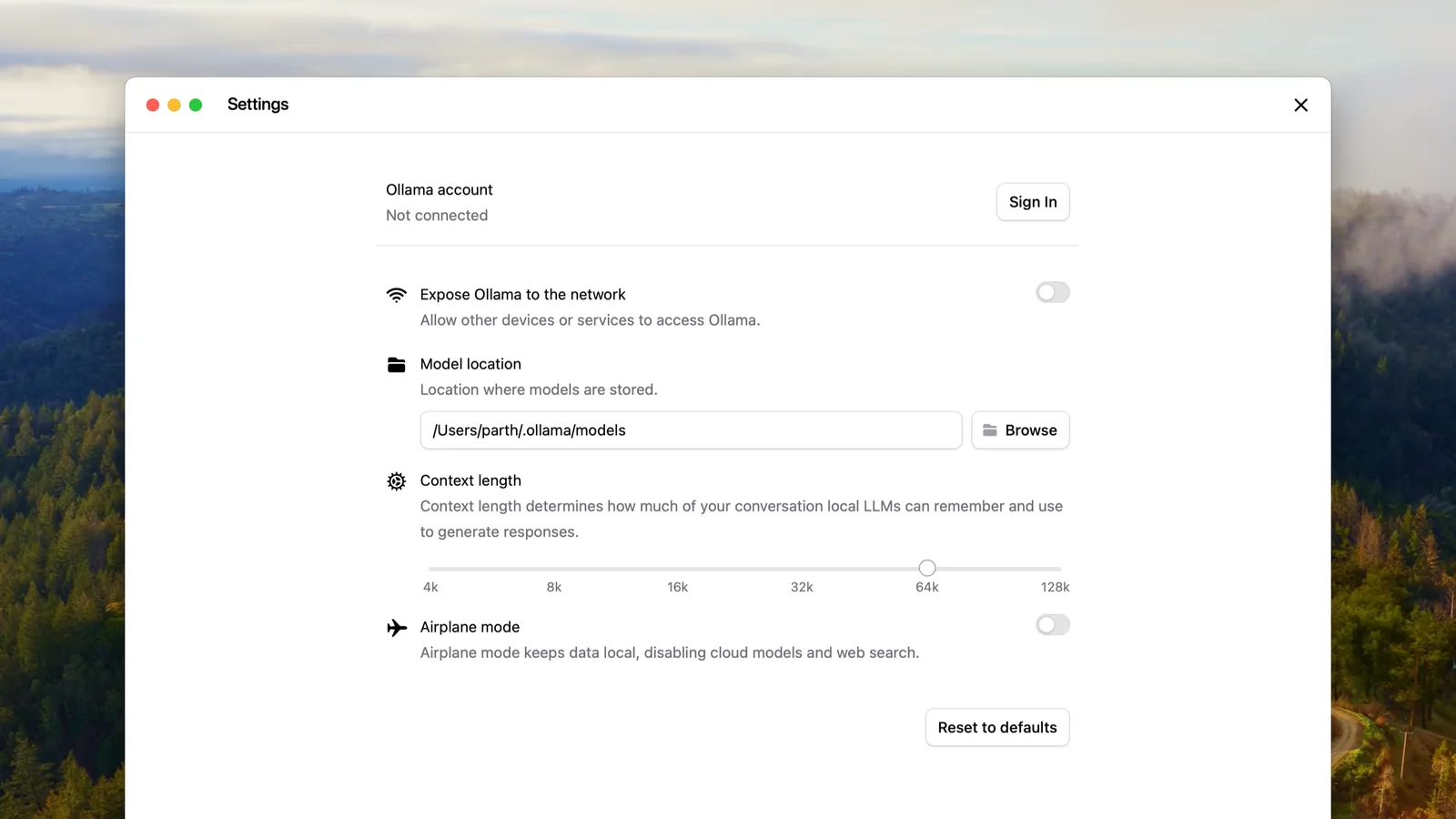
Install Ollama on Windows, macOS, Linux or a server with exact commands, run DeepSeek and Persian-capable models locally, use the OpenAI-compatible API, secure port 11434 and work offline.
Read More
Turn Persian voice messages, recordings and meetings into text: phones, Telegram, Bale, Rubika, Word, Google Docs, Iranian services, open models you run, and how to check accuracy.
Read MoreIf you want the agents and automation in this guide working for your engineering team or business processes, start with a small pilot you can measure.