To install Ollama on Windows, run OllamaSetup.exe from the official site or the official PowerShell one-liner; on macOS and Linux, run the install.sh script; then a single ollama run command downloads and starts your first model. Ollama is an open-source program that runs open-weight language models on your own computer or server and exposes an API to other programs on port 11434. Once a model has been downloaded, running it needs no internet connection.
This tutorial was checked against Ollama's official documentation, GitHub repository and model library on November 16, 2026. The latest stable release that day was version 0.40.16, published on November 9. Every terminal message quoted below comes from the official documentation or from the source code of that release.
People also search for it as "olama" or by its Persian spellings, and they all mean the same program. This guide is for anyone who wants to run local AI on a laptop, a desktop or an organisation's server: sizing the hardware, installing, running DeepSeek, testing Persian, connecting code, securing the port, and working on Iran's domestic network or with no internet at all.
What Ollama is and where to get it
Ollama has three parts: a server that loads a model into memory and generates answers, a command-line tool called ollama, and on Windows and macOS a desktop app that keeps the server running in the background. The code is published in the official Ollama repository on GitHub under the MIT licence, and models are pulled from the library on Ollama's website.
One distinction causes most of the confusion, so settle it first. Ollama now runs models in two ways. In the first, the model runs on your own hardware. In the second, described on the cloud models page, the model runs on Ollama's servers and only its name appears in your tools. Those model names end in cloud, for example gemma4:cloud. Using them requires an Ollama account, and according to Ollama's pricing page each request is paid from usage credits or a plan. Wherever this guide says "local", it means only the first way.
Get the program only from the official download page or the GitHub releases page. Copies passed around on download sites may be outdated or tampered with, which is not a small risk for software that opens a network port.
Before you install: which models your machine can run
The number that matters most is the memory the model has to fit into: graphics memory (VRAM), or unified memory on Apple silicon Macs. Ollama's quickstart says the small gemma4:e2b model is about a 7.2 GB download and recommends 8 GB of available VRAM, or unified memory on a Mac. The same note adds two things: larger context windows need more memory, and with less VRAM Ollama can fall back to system RAM, but responses may be slower.
The rule we take from that guidance is simple. The size the library lists for a tag is the minimum memory it needs, and you need some headroom on top for the conversation. The table below is our reading, not an official Ollama table; the sizes come from the library pages as of November 16.
| Free VRAM or Mac unified memory | Tags worth trying | Download size |
|---|
| About 8 GB | gemma4:e2b, deepseek-r1:8b, qwen3.5:4b | 4.6 to 7.5, 5.2 and 3.3 to 4 GB |
| About 16 GB | gemma4:e4b, gemma4:12b, deepseek-r1:14b | 6.6 to 9.5, about 8 and 9 GB |
| 24 to 32 GB | qwen3.8:27b, gemma4:31b, deepseek-r1:32b, gpt-oss:20b | 18, 19 to 20, 20 and 14 GB |
| 48 to 64 GB | deepseek-r1:70b | 43 GB |
| Server-class hardware with more than 404 GB | deepseek-r1:671b and deepseek-v3.1 | 404 GB |
Context size matters as well. The context length page says Ollama picks a default window from your VRAM: 4k tokens below 24 GiB, 32k from 24 to 48 GiB, and 256k at 48 GiB and above. The same page recommends at least 64k tokens for agents, coding tools and web search. In practice, a laptop with an 8 GB card is fine for chat, but a coding agent needs a bigger window and the extra memory that comes with it.
For GPU support, see Ollama's hardware page: NVIDIA cards with compute capability 5.0 or higher and driver 550 or newer (driver 570 or newer for compute capability 5.0 to 6.2), AMD cards through ROCm v7 or Vulkan, and Apple silicon through Metal. Intel Macs run on the CPU only.
After installing, replace guesses with measurements. Run ollama run deepseek-r1:8b --verbose and after each answer you get a line labelled eval rate with generation speed in tokens per second. ollama ps shows where the model was loaded in its PROCESSOR column. According to the Ollama FAQ, 100% GPU means the whole model is in graphics memory, 100% CPU means it is all in system memory, and a value such as 48%/52% CPU/GPU means it is split between the two and will be slow.
Install Ollama on Windows
The Windows page of the Ollama docs lists the requirements: Windows 10 22H2 or newer, Home or Pro; NVIDIA driver 551.61 or newer if you have an NVIDIA card; and for AMD, a driver stack with ROCm v7 or Vulkan support. The install does not need administrator rights, goes into your home folder, and needs at least 4 GB of space for the program itself. Models come on top of that.
Option one is the graphical installer: download OllamaSetup.exe from the download page and run it. Option two is PowerShell:
irm https://ollama.com/install.ps1 | iex
The script downloads the same installer, checks its digital signature before running it, and finishes with these lines:
>>> Downloading Ollama for Windows...
>>> Installing Ollama...
>>> Install complete. Run 'ollama' from the command line.
After installation, Ollama runs in the background with an icon in the system tray. Open a new PowerShell window and ask for the version:
The expected answer is a line like ollama version is 0.40.16. If you see Warning: could not connect to a running Ollama instance instead, start Ollama from the Start menu.
Two optional settings. To install to another drive, run the installer as OllamaSetup.exe /DIR="D:\Ollama". To store models on another drive, search Windows settings for "environment variables", choose to edit the variables for your account, create OLLAMA_MODELS with the path you want, then quit Ollama from the tray and start it again. By default models live in C:\Users\%username%\.ollama\models and logs in %LOCALAPPDATA%\Ollama.
If a Windows 10 terminal shows squares instead of a progress bar, the Windows page suggests changing the terminal font. If it shows strings like ←[?25h, the troubleshooting page says your Windows 10 version is too old and needs updating. For installing DeepSeek on a Windows laptop, the next step is one command, covered in the DeepSeek section below.
Install Ollama on macOS
According to the macOS page of the Ollama docs, you need macOS 14 (Sonoma) or newer. Apple silicon Macs use both the CPU and the GPU; Intel Macs use the CPU only.
Download Ollama.dmg from the download page, drag the app into Applications and open it. If the ollama command is not on your PATH, the app asks for permission to create a link in /usr/local/bin. Alternatively, use the terminal:
curl -fsSL https://ollama.com/install.sh | sh
The script installs the app into Applications and ends with >>> Install complete. You can now run 'ollama'. Models and settings live in ~/.ollama, and the server log in ~/.ollama/logs/server.log. To set environment variables on a Mac, use launchctl setenv and restart the app; there is an example in the security section.
Install Ollama on Linux
The Linux page of the Ollama docs gives one install command:
curl -fsSL https://ollama.com/install.sh | sh
If you would rather read a script from the internet before running it, which is the right habit, save it, read it, then run it:
curl -fsSL https://ollama.com/install.sh -o ollama-install.sh
less ollama-install.sh
sh ollama-install.sh
The script needs sudo and the zstd tool. Without zstd it stops with This version requires zstd for extraction and suggests the install command for each distribution; on Ubuntu and Debian that is sudo apt-get install zstd. The script creates an ollama user, sets up a systemd service, looks for an NVIDIA or AMD GPU, and ends with:
>>> The Ollama API is now available at 127.0.0.1:11434.
>>> Install complete. Run "ollama" from the command line.
If it finds no GPU, you see the warning No NVIDIA/AMD GPU detected. Ollama will run in CPU-only mode. Check the install with:
ollama -v
systemctl status ollama
curl http://127.0.0.1:11434
The last command should return Ollama is running. To install a specific version, which we recommend on servers, pass the version to the script: curl -fsSL https://ollama.com/install.sh | OLLAMA_VERSION=0.40.16 sh. The script does not work on WSL1; on Windows you need WSL2.
A manual install is documented too, and it helps on a server without internet access: download the ollama-linux-amd64.tar.zst package on a connected machine, carry it to the server, and extract it into /usr as the manual install section of the Linux page shows. There is also ollama-linux-amd64-rocm.tar.zst for AMD GPUs and ollama-linux-arm64.tar.zst for ARM processors.
Working with Ollama: download, run and manage models
Since version 0.40.15, running ollama with no arguments opens a welcome launcher where you pick a model or a connected app. Local models need no sign-in. The authentication page says the local API requires no authentication, and signing in is needed only for cloud models, publishing models or downloading private ones.
The examples in this guide use gemma4:e4b, which is 6.6 to 9.5 GB. With about 8 GB of VRAM, put gemma4:e2b in every command instead; it is the model Ollama's quickstart uses. Download a model first:
The terminal shows pulling manifest, then a progress bar for each part of the file, then verifying sha256 digest and writing manifest, and finally success. Now start a chat:
A >>> prompt appears with the faint placeholder Send a message (/? for help). Type your question and press Enter. Wrap multi-line text in triple quotes, and leave with /bye or Ctrl+D. For a single answer, pass the question directly: ollama run gemma4:e4b "Give me three tips for a short business email".
Model names have two parts, a name and a tag, as in deepseek-r1:14b. Without a tag you get latest, which points to one specific size of each model. The tags and their sizes are listed on each model's library page.
Everyday commands, from the Ollama CLI reference:
ollama ls
ollama ps
ollama show gemma4:e4b
ollama stop gemma4:e4b
ollama rm gemma4:e4b
ollama pull deepseek-r1:8b
ollama ls prints a table with NAME, ID, SIZE and MODIFIED. In version 0.40.16 the ollama ps table has NAME, ID, SIZE, PROCESSOR, CONTEXT, RUNNER and UNTIL. CONTEXT shows the context length actually reserved for the model, and UNTIL shows when it will be unloaded. ollama rm prints deleted followed by the model name.
Ollama itself downloads updates automatically on Windows and macOS; choose "Restart to update" from the app icon. On Linux, run the install script again.
Install Ollama on a server as a service
On a server with systemd, the install script creates and enables a service called ollama, so Ollama comes back up after every reboot. Read the logs with journalctl -e -u ollama. Do not edit the main unit file; create an override that survives updates:
sudo systemctl edit ollama
A sensible configuration for a server that only programs on the same machine connect to:
[Service]
Environment="OLLAMA_HOST=127.0.0.1:11434"
Environment="OLLAMA_KEEP_ALIVE=30m"
Environment="OLLAMA_CONTEXT_LENGTH=16384"
Environment="OLLAMA_NUM_PARALLEL=2"
Environment="OLLAMA_NO_CLOUD=1"
Then reload and restart the service:
sudo systemctl daemon-reload
sudo systemctl restart ollama
Each line is explained later: the listen address in the security section, and keep-alive, context length and concurrent users in the customisation section. The last line turns off cloud features, which per the Ollama FAQ means cloud models and web search.
With an NVIDIA card, run nvidia-smi first; if it does not show the card, Ollama will not see it either. The hardware page also documents a known issue: on Linux, after a suspend and resume, the NVIDIA GPU sometimes disappears and Ollama falls back to the CPU. The fix is to reload the driver module with sudo rmmod nvidia_uvm && sudo modprobe nvidia_uvm.
On a server, models are stored in /usr/share/ollama/.ollama/models. To keep them on a bigger disk, set OLLAMA_MODELS in the same override and give the folder to the service user, for example sudo chown -R ollama:ollama /data/ollama-models.
If you prefer Docker, the Docker page of the Ollama docs explains installing the NVIDIA Container Toolkit. Take one security difference seriously: the official example publishes the port with -p 11434:11434, and Docker's port publishing documentation says published ports are bound to all host addresses by default and become reachable from outside. This version exposes the port to the server itself only; the same page warns that before Docker 28.0.0, hosts on the same local network segment can still reach ports published to localhost:
docker run -d --gpus=all -v ollama:/root/.ollama -p 127.0.0.1:11434:11434 --name ollama ollama/ollama
docker exec -it ollama ollama run gemma4:e4b
For running Ollama alongside other tools in a Compose file, the local-model section of our n8n self-hosting guide for Iranian servers has a complete example.
Installing Ollama on Android and iPhone: what is official
Ollama's download page covers three operating systems: macOS, Windows and Linux. As of this review there is no official Android or iPhone release. The community list in the official repository's README has a Mobile section: one Android project that runs Ollama itself on the phone, and several apps that are only clients and connect to Ollama on another machine or to Ollama's cloud. Ollama does not maintain these projects, so check their code, licence and requested permissions before installing.
The more practical way to use a phone is to run Ollama on a computer or server on your own network and connect from the phone through a browser chat interface. That requires the server to be reachable on the local network with a firewall that admits only that network; the security section shows how.
On searches for installing DeepSeek on an iPhone, to be plain: Ollama has no iPhone release, so it offers no way to run DeepSeek locally on an iPhone. DeepSeek's own app is not a local model either; where your data goes is covered in the DeepSeek section.
Install DeepSeek with Ollama: which version runs on your machine
Most people searching for how to install DeepSeek want the model they used in the DeepSeek app. That expectation needs correcting up front. In Ollama's official library on November 16, the DeepSeek entries from the R1 generation onward looked like this:
| Name in Ollama | What it actually is | Download size | Where it runs |
|---|
deepseek-r1:1.5b and deepseek-r1:7b | R1 distilled into Qwen2.5-Math bases | 1.1 and 4.7 GB | Your machine |
deepseek-r1:8b (also latest) | DeepSeek-R1-0528-Qwen3-8B | 5.2 GB | Your machine |
deepseek-r1:14b and deepseek-r1:32b | R1 distilled into Qwen2.5 bases | 9 and 20 GB | Your machine |
deepseek-r1:70b | R1 distilled into Llama 3.3 70B | 43 GB | Your machine |
deepseek-r1:671b, deepseek-v3 and deepseek-v3.1 | Full 671B models | 404 GB at 4-bit | Server-class hardware |
deepseek-ocr | 3B model for reading text in images | 6.7 GB | Your machine |
deepseek-v4-pro:cloud and deepseek-v4.1-flash:cloud | The V4 generation | No download | Ollama's servers only |
The table comes from the deepseek-r1, deepseek-v3.1, deepseek-v4-pro and deepseek-v4.1-flash library pages. The deepseek-v4-flash page says that cloud model was retired on August 27, 2026. The library also keeps older generations (deepseek-llm, deepseek-coder, deepseek-coder-v2, deepseek-v2 and deepseek-v2.5), which the table leaves out. Search results also show user-uploaded models with "deepseek" in their names and a username in front. They are not part of the official library, and some are modified builds labelled "uncensored" or "abliterated"; check who published one and what they changed before using it.
To run DeepSeek on a laptop or a Windows PC, after installing Ollama this is enough:
ollama run deepseek-r1:8b
The model shows its reasoning before the answer. Add --hidethinking if you only want the final reply. The official DeepSeek-R1 model card recommends a temperature of 0.5 to 0.7 (0.6 preferred) for the series, to avoid endless repetition or incoherent output.
The DeepSeek app is not a local model. Under DeepSeek's privacy policy, last updated February 10, 2026, the company collects, processes and stores personal data in the People's Republic of China. Your input, including text, prompts and uploaded files, may be collected, and one of the stated uses is training and improving its machine learning models; among the rights the policy says may be available depending on where you live, it lists a right to opt out of your data being used for model training. With a local run, your prompt never leaves your machine, and the Ollama FAQ says Ollama does not see your prompts or data when you run locally. The cloud tags are a third path: the model runs on Ollama's servers. Ollama says it does not store or log that content or train on it; that is the vendor's own claim.
What to expect from a small model. deepseek-r1:8b is not the model that answers in the DeepSeek app. According to the model card, the distilled versions are open Qwen and Llama models fine-tuned on samples generated by R1, and the 1.5B and 7B versions sit on math-specialised bases. DeepSeek evaluated them only on maths, science and coding, and there is no published Persian evaluation for them. In practice they help with step-by-step problem solving, answer more slowly with long reasoning traces, and trail larger models on general knowledge and natural Persian prose. The V3.1-Terminus notes on that model's Ollama library page also list fewer Chinese-English mix-ups as an improvement, so watch for language mixing in Persian answers too.
The V4 generation will not run on a laptop. DeepSeek-V4 weights are published under the MIT licence on the DeepSeek-V4-Flash page on Hugging Face and its sibling pages. Ollama's official library, however, offers V4 only as cloud models, and the deepseek-v4.1-flash page lists it at 763B parameters. We have not verified that these weights run in Ollama through a manual import. Running them on your own hardware takes server-class hardware, not a laptop. We list the memory and hardware for each DeepSeek-V4 version on our local AI models page, which also has a Persian-score table for open models.
Which local AI model handles Persian best
For a public comparison of models on Persian, the Open Persian LLM Leaderboard is a good starting point. It was built by Part AI with the NLP lab of Amirkabir University of Technology. It has 21 tasks, from Persian literature and proverbs to Islamic jurisprudence, law and Iranian social norms, and its data was last updated on September 19, 2026. On the average of those 21 tasks, among models available in Ollama, the order is:
gemma4:31b and qwen3.8:27b are the top open models on the board. gemma4:31b averages above GPT-4o, and qwen3.8:27b sits just below it. Both are Apache 2.0, and each is about 18 to 20 GB in Ollama.gemma4:26b, a MoE model with about 4B active parameters, comes next among models that fit on a single card, at 16 to 19 GB.gemma4:e4b sits mid-table and gemma4:e2b lower. They are the realistic options for an ordinary laptop, but the gap to the larger models is not small.- Cohere's
aya-expanse lists Persian among the 23 languages it supports, but it is licensed CC-BY-NC and does not allow commercial use.
- None of the DeepSeek-R1 distills is on the board. The full DeepSeek-V3 is, with a good score, but that is the 671B model, not the 8B one.
Two caveats. The board did not test Ollama's builds; Ollama's default tags are quantised and may be slightly weaker than the versions the board tested. And its tests are questions with set answers, which is not your daily work. Use the board for a shortlist and make the final choice with your own test.
Your own five-question test. Write five questions from your real work, one per line in a file called questions-fa.txt. Make one a summary of an administrative paragraph, one a question whose correct answer you know, one about a Persian (Jalali) date or a number, one a formal text with correct zero-width non-joiners, and one that the model should answer with "I don't know". This script asks several models the same questions and saves each model's answers to its own file:
#!/usr/bin/env bash
set -euo pipefail
models=("gemma4:e4b" "qwen3.5:9b" "deepseek-r1:8b")
mkdir -p answers
for model in "${models[@]}"; do
out="answers/${model//:/_}.md"
: > "$out"
while IFS= read -r question <&3; do
[ -z "$question" ] && continue
printf '## %s\n\n' "$question" >> "$out"
ollama run "$model" --hidethinking "$question" < /dev/null >> "$out"
printf '\n\n' >> "$out"
done 3< questions-fa.txt
done
Read the answers side by side and score each from zero to two on correctness, natural Persian without language mixing, following instructions, and getting numbers and dates right. Run each question twice to see how much the answers move. Pick the model that does best on your work, not the one that ranks higher on a public table.
Use Ollama from code: the local API and the OpenAI-compatible endpoint
The Ollama server listens on http://localhost:11434. It has two sets of endpoints: Ollama's own API under /api and an OpenAI-compatible interface under /v1. The simplest request with curl:
curl http://localhost:11434/api/chat -d '{
  "model": "gemma4:e4b",
  "messages": [
    {"role": "user", "content": "In two sentences, explain why regular backups matter."}
  ],
  "stream": false
}'
The reply is a JSON object. The answer text is in message.content, and fields such as eval_count and total_duration report tokens and timing. Without "stream": false, the answer arrives in pieces, one JSON line at a time. Quoting works differently in PowerShell; use the official Invoke-WebRequest example from the Windows page.
For a program built on the OpenAI library, change only the base URL. According to the OpenAI compatibility documentation, the library needs a value for the key but Ollama ignores it:
from openai import OpenAI
client = OpenAI(
base_url="http://localhost:11434/v1/",
api_key="ollama",
)
response = client.chat.completions.create(
model="gemma4:e4b",
messages=[
{"role": "system", "content": "Answer only in Persian, in at most three sentences."},
{"role": "user", "content": "Explain the difference between a local model and a cloud service."},
],
temperature=0.3,
)
print(response.choices[0].message.content)
The same page lists what is supported: chat completions with streaming, JSON mode, vision, tools and reasoning control. /v1/completions, /v1/embeddings and /v1/models exist, and /v1/responses works statelessly. tool_choice and logprobs are not supported. The OpenAI interface has no way to set the context length; for that, build a model variant with a Modelfile, as shown in the customisation section. If you are writing your own code and do not need OpenAI compatibility, the official Python library is available with pip install ollama.
Connect OpenCode, agents and a chat interface to Ollama
The OpenCode page of the Ollama docs gives the shortest route. Run this in your project folder; if OpenCode is not installed, Ollama offers to install it and then asks for a model:
The same page has an important condition: OpenCode needs a context length of at least 64k tokens. The 4k default on cards under 24 GiB is not enough for it. Move the context slider in the Ollama app settings, or start the server with OLLAMA_CONTEXT_LENGTH=65536, and confirm with ollama ps. For manual configuration, add this to opencode.json:
{
  "$schema": "https://opencode.ai/config.json",
  "provider": {
    "ollama": {
      "npm": "@ai-sdk/openai-compatible",
      "name": "Ollama",
      "options": {
        "baseURL": "http://localhost:11434/v1"
      },
      "models": {
        "qwen3.8:27b": {
          "name": "qwen3.8:27b"
        }
      }
    }
  }
}
The rest of OpenCode, from permissions to AGENTS.md, is in our complete OpenCode guide. If you prefer Qwen Code, our Qwen Code tutorial connects it to Ollama step by step. To build a messenger chatbot on the same local model, see our guide to building an AI bot on Bale.
A chat interface in the browser. Open WebUI is the first web interface in the community list in Ollama's repository. It is an independent project, and according to its README its licence requires keeping the Open WebUI branding, so do not treat it as a plain permissive open-source licence. The simplest install on the same computer is the Python one. The README gives Python 3.12 for it, and the Open WebUI quick start says 3.11 and 3.12 are supported and 3.13 is not:
pip install open-webui
open-webui serve
Then open http://localhost:8080. According to the Open WebUI quick start, in this mode it finds Ollama on localhost:11434 automatically, so Ollama can keep listening on the loopback address only. The Docker version of Open WebUI, by contrast, needs Ollama to listen on all addresses; if you choose it, apply the rules in the security section.
Customise Ollama: Modelfile, context length, keep-alive and multiple users
Modelfile. A plain file that builds a variant of a base model with fixed settings and a fixed system prompt. The Modelfile reference lists every instruction. A sample Persian assistant:
FROM gemma4:e4b
PARAMETER num_ctx 16384
PARAMETER temperature 0.3
SYSTEM """تو دستیار فارسیزبان واحد پشتیبانی هستی. کوتاه، مؤدب و فقط به فارسی پاسخ بده. اگر پاسخ را نمیدانی، صریح بگو نمیدانم."""
The system prompt tells the model it is a Persian-speaking support assistant that answers briefly, politely and only in Persian, and says plainly when it does not know. Save the text as a file named Modelfile, then build and run it:
ollama create dastyar-fa -f Modelfile
ollama run dastyar-fa
To see the Modelfile of any installed model, use ollama show --modelfile gemma4:e4b.
Context length. There are four ways to set it: the slider in the desktop app's settings, the OLLAMA_CONTEXT_LENGTH variable when the server starts, /set parameter num_ctx 8192 inside an ollama run session, and num_ctx inside options in an API request. A bigger window uses more memory. If, after increasing it, the PROCESSOR column in ollama ps drops below 100% GPU, pick a smaller model or a smaller window.
Keeping a model loaded. Per the Ollama FAQ, a model is unloaded 5 minutes after the last request by default, and the next request waits for it to load again. Change that with the keep_alive API parameter or the OLLAMA_KEEP_ALIVE variable. A negative value keeps the model loaded indefinitely and zero unloads it immediately. To preload a model and keep it in memory:
curl http://localhost:11434/api/generate -d '{"model": "gemma4:e4b", "keep_alive": -1}'
GPUs. Ollama picks the GPU itself. If the model fits on one card it loads there; if not, it spreads across all cards. Restrict which cards it uses with CUDA_VISIBLE_DEVICES for NVIDIA or ROCR_VISIBLE_DEVICES for AMD. The FAQ says that when Flash Attention is on, which Ollama enables automatically on supported hardware, quantising the context cache with OLLAMA_KV_CACHE_TYPE=q8_0 roughly halves its memory with usually no noticeable quality loss. The setting is global and applies to every model.
Several users at once. Three variables decide this. OLLAMA_NUM_PARALLEL is the number of simultaneous requests per model, default 1. OLLAMA_MAX_QUEUE is how many requests can wait, default 512, after which the server returns a 503 error. OLLAMA_MAX_LOADED_MODELS is how many models stay in memory at once. Memory grows with parallel requests multiplied by context length: four parallel requests with a 2k window effectively need an 8k window. Ollama is excellent for one person or a small team. For dozens of concurrent users, serving engines such as vLLM, covered in our AI API access guide for Iran, are a better fit.
Security: never expose port 11434 to the internet
Per the Ollama FAQ, the server listens only on 127.0.0.1 port 11434 by default and is not reachable from outside the machine. The authentication page adds that the local API has no authentication. So anyone who can reach that port can run models, pull new ones until the disk fills, or delete models. Never set OLLAMA_HOST=0.0.0.0 on a server with a public address without a firewall. Three patterns, from simplest to most involved; the first two are safe as shown, and the third only on an internal network behind a firewall:
1. Keep the server on loopback and use an SSH tunnel. If you administer the server and only you need its GPU from your laptop, leave Ollama alone and bring the port to your laptop over the SSH access you already use to manage the server. This is ordinary server administration: a port bound to the server's loopback address becomes available only to whoever can log in over SSH. While this command runs, programs on the laptop use http://localhost:11434 as usual:
ssh -N -L 11434:127.0.0.1:11434 user@your-server
2. An internal network behind a firewall. In the service override, set OLLAMA_HOST to 0.0.0.0:11434 and let ufw admit only the internal subnet. The command syntax follows Ubuntu's firewall guide. Allow SSH before enabling ufw so you do not lock yourself out:
sudo ufw allow 22
sudo ufw allow proto tcp from 192.168.1.0/24 to any port 11434
sudo ufw enable
sudo ufw status
On a Mac the same setting is launchctl setenv OLLAMA_HOST "0.0.0.0:11434" followed by restarting the app. On Windows, create OLLAMA_HOST among your account's environment variables. On both, do this only on a network you trust, and restrict port 11434 to that network in the operating system's own firewall. If Ollama runs in Docker, this is not enough: Docker's packet filtering and firewalls page says traffic to ports Docker publishes is diverted before it reaches ufw's rules. In Docker, publish the port with the 127.0.0.1: prefix.
3. A reverse proxy with HTTPS on an internal network. If several programs on the network need Ollama, keep Ollama on 127.0.0.1 and put Nginx in front. The block below is the Nginx example from the Ollama FAQ, which sets the Host header, plus the HTTPS lines in the form the Nginx documentation gives and proxy_read_timeout, which raises the default 60-second wait for a response so long answers are not cut off. Put this in /etc/nginx/conf.d/ollama.conf:
server {
    listen 443 ssl;
    server_name llm.example.internal;

    ssl_certificate     /etc/ssl/certs/llm.example.internal.crt;
    ssl_certificate_key /etc/ssl/private/llm.example.internal.key;

    location / {
        proxy_pass http://localhost:11434;
        proxy_set_header Host localhost:11434;
        proxy_read_timeout 600s;
    }
}
This configuration only encrypts the connection. Like Ollama itself, it has no access control: anyone who reaches the address can use the model. So restrict port 443 to the internal network with a firewall, as in pattern 2, and do not open it on a public address. If you also want access control, add a check on the Authorization header yourself: OpenAI-compatible libraries send the key in that header as Bearer, and the if and return directives of Nginx's rewrite module are documented for comparing it with a token and returning a 401 error. Test every change with sudo nginx -t before reloading, then confirm that a request without the token gets a 401. Then, in the Python example above, set base_url to https://llm.example.internal/v1/ and api_key to that token. For the certificate, the Caddy and Certbot section of the n8n guide applies.
Two more points. OLLAMA_ORIGINS controls which web pages may reach Ollama from inside a browser; do not widen it without a reason. And public tunnelling services that put the port on the internet bypass every layer above; they have no place in this setup.
Ollama on Iran's domestic network and with no internet
Downloading needs the internet: the program comes from Ollama's site or GitHub, and ollama pull fetches models from the registry on Ollama's site. We have not tested whether those addresses are reachable from inside Iran and make no claim about it. If your schedule depends on them, check access yourself on the day.
After downloading, running needs no internet. The model file is on your disk, the local API needs no account, and running a local model depends on no outside server, so the model answers on the domestic network or with no connection at all. To make sure no request goes to the cloud service, turn off cloud features as the FAQ describes: either OLLAMA_NO_CLOUD=1, or this setting in ~/.ollama/server.json:
{
  "disable_ollama_cloud": true
}
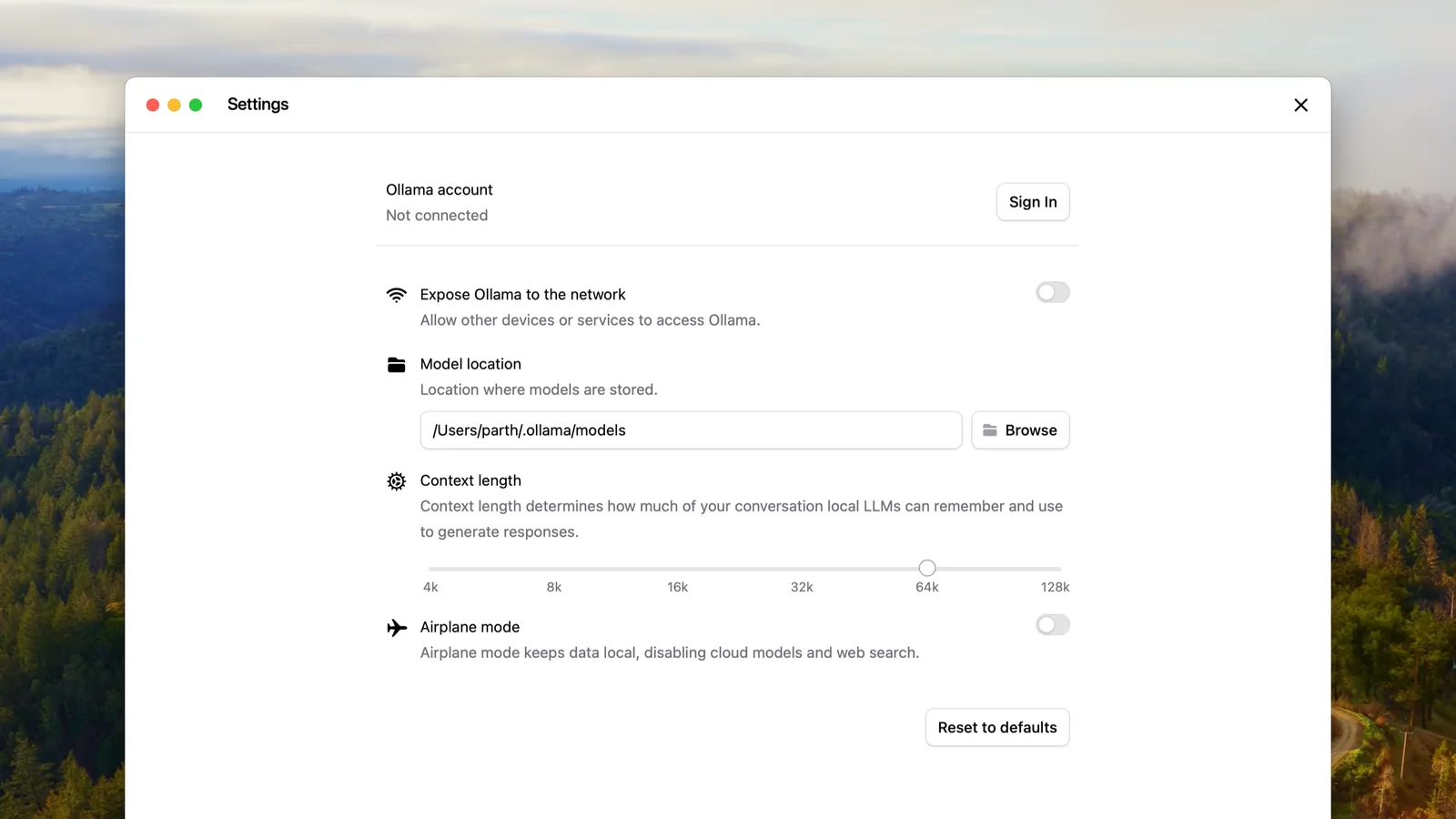
After a restart, the server log shows Ollama cloud disabled: true. The screenshot of the desktop app's settings in Ollama's documentation also shows a switch that does the same:
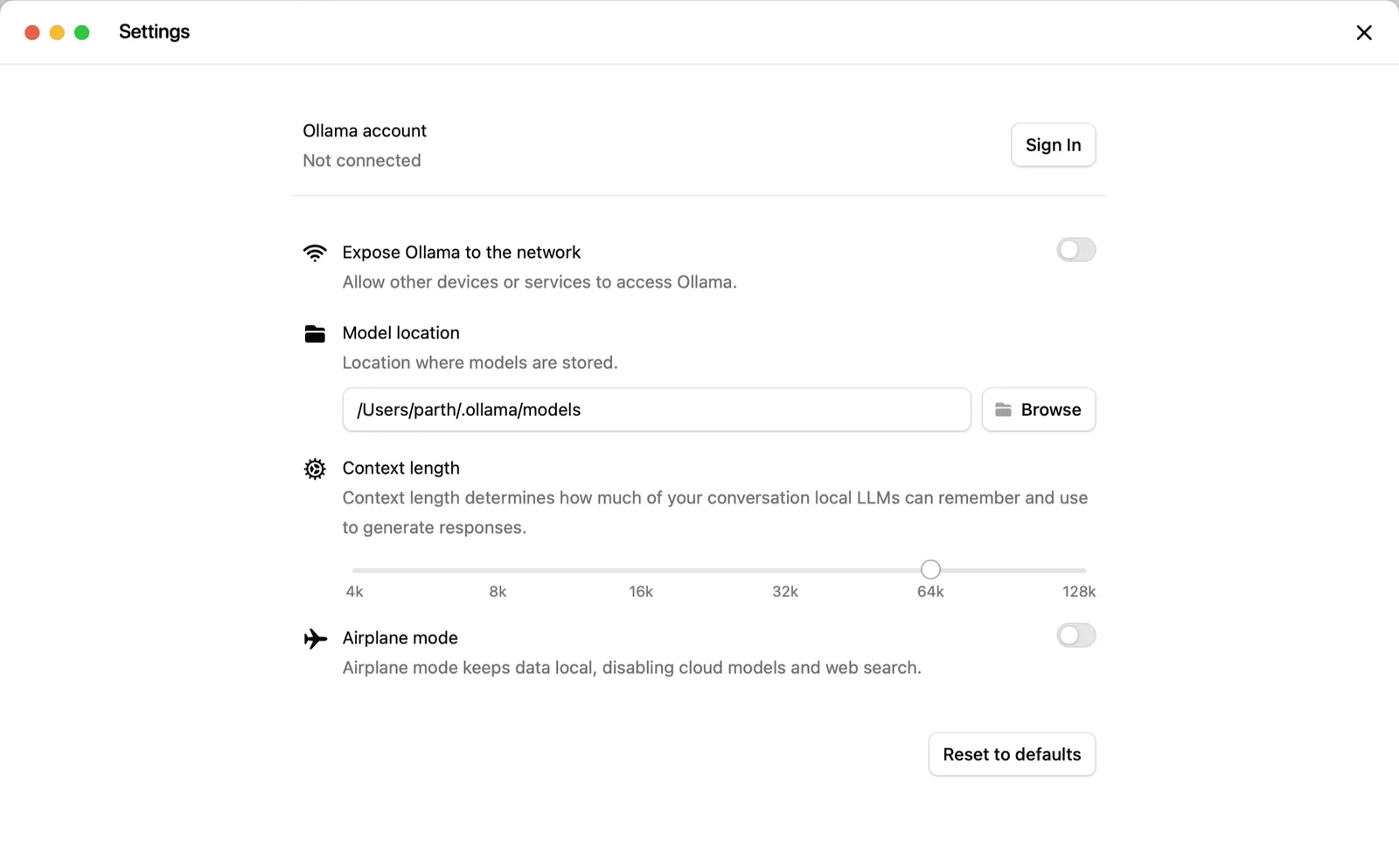 Official screenshot of the Ollama app settings with Expose Ollama to the network, Model location, the Context length slider and Airplane mode for running local AI without internet
Cropped from the official image on the context length page of the Ollama docs. In this image, Airplane mode keeps data local and disables cloud models and web search. "Expose Ollama to the network" is the same as opening the port to the network, covered in the security section.
Terms of use. Ollama's terms of service, last updated in August 2026, contain no list of countries. They limit use to lawful purposes and to people 18 or older, are governed by California law, process subscription payments through Stripe, and do not promise uninterrupted service. The program itself is MIT-licensed, and Ollama's pricing page says running models on your own hardware is always unlimited. Cloud models, by contrast, need an account and payment. This is not legal advice. If you want a large cloud model and those terms are unclear for your situation, the legitimate alternative is running an open model on your own server, covered in the last section.
Moving a model to a machine with no internet. Using pieces from Ollama's documentation, this takes two steps. First, install the program manually: on Linux the .tar.zst file, on Windows OllamaSetup.exe or the standalone ollama-windows-amd64.zip, downloaded on a connected machine and carried over on removable media. Second, import the model. Per the model import documentation, Ollama accepts a GGUF file or a folder of Safetensors weights directly. Download the model's GGUF file from its maker's official page, read its licence, compare the checksum with sha256sum if one is published, and carry the file over. Then write a Modelfile:
FROM ./my-model-q4_k_m.gguf
And build the model:
ollama create my-model -f Modelfile
ollama run my-model
Ollama does not quantise GGUF files during import, so bring an already quantised file. For a model split across several files, keep the original filenames and use a pattern such as ./model-*.gguf in FROM. Copying Ollama's model folder from one machine to another is not described in the official documentation, and we do not present it as an official method. Our n8n guide covers the same process inside Docker.
Common Ollama errors and fixes
could not connect to ollama server, run 'ollama serve' to start it. The server is off. You see this on Linux, and on macOS when the command line cannot open the app itself. On Linux run sudo systemctl start ollama, then systemctl status ollama; on macOS, open the Ollama app.ollama serve stops with an error saying the address is already in use. The service is already running on port 11434. Do not start a second copy; put settings in the service override.model "..." not found, try pulling it first. The name or tag does not match ollama ls, or the model has not been downloaded. Run ollama pull with the exact name.- Answers are very slow. Check
ollama ps. If PROCESSOR shows anything other than 100% GPU, pick a smaller model or a shorter context. If the NVIDIA card is not seen at all, check nvidia-smi and the driver.
- An AMD card is not detected on Linux. Per the troubleshooting page, messages such as
failed to finish discovery before timeout usually mean a driver older than ROCm v7. Update it with amdgpu-install and reboot.
- 503 errors under load. The request queue is full. Per the FAQ, raise
OLLAMA_MAX_QUEUE; if memory allows, also raise OLLAMA_NUM_PARALLEL, or split the load across servers.
- A coding agent loses the thread or answers are cut short. On a card under 24 GB, the context window is still the 4k default. Raise it to 64k and account for the memory.
- Persian answers mix in English or Chinese. Give a clear Persian system prompt, lower the temperature, and if it persists, switch to the model that did best in your five-question test.
- The disk is full. Remove unused models with
ollama rm, or move OLLAMA_MODELS to a bigger disk.
For anything else, read the logs: on macOS ~/.ollama/logs/server.log, on Linux journalctl -u ollama --no-pager --follow --pager-end, on Windows server.log in %LOCALAPPDATA%\Ollama. For more detail, run the server with OLLAMA_DEBUG=1.
When a laptop is not enough: a GPU server, bought or rented
Four signs say it is time for a server: the model whose quality your work needs does not fit in your VRAM; several people use it at once; agents need a 64k window or more; or the service has to stay up around the clock. The 27B to 31B models with the best Persian scores usually need a 32 GB card or more once the context grows, and DeepSeek-V4 needs server-class hardware.
You have two routes. One is buying a server, with an up-front cost plus power, cooling and upkeep. We show how to estimate that in Toman and compare it with ready-made APIs in our AI implementation cost guide for Iran, 1405. The other is renting a GPU server by the hour, to test a model before buying or for periodic jobs. ZharfAI's hourly cloud GPU servers are in Europe, the UK and the US, so your data leaves Iran for processing; account for that in your data classification. These servers come with Ubuntu Linux, GPU drivers and full SSH access, so the Linux and service sections of this guide apply to them too. Because you reach these servers over the internet, keep Ollama on 127.0.0.1 and connect from your laptop with the SSH tunnel from the security section.
Frequently asked questions
Is Ollama free?
Yes. The program is open source under the MIT licence, and running models on your own hardware costs nothing. Only Ollama's cloud models, the tags ending in cloud, need an account and paid credits or a plan.
What is local AI?
A model whose weight files are stored and run on your own machine rather than on a company's server. Data does not leave the machine and an internet outage does not stop the work, but quality is limited to the size of model your hardware can run.
Does Ollama work on Iran's domestic network or with no internet?
Running a model you have already downloaded, yes. Downloading the program and models needs the internet, and we have not tested access to them from inside Iran. For a machine with no internet, use the manual install and a GGUF import.
Can I install DeepSeek on a laptop?
The distilled versions, yes: deepseek-r1:8b is about 5.2 GB and runs on a laptop with about 8 GB of VRAM or unified memory. But it is not the model in the DeepSeek app. The full 671B models and the V4 generation need server-class hardware.
Does Ollama have an official Android or iPhone app?
No. Official releases are for macOS, Windows and Linux only. Community projects exist for Android and as mobile clients, but Ollama does not maintain them. The safer route is running Ollama on a computer on your own network and connecting from the phone.
Which local model is best for Persian?
On the public Open Persian LLM Leaderboard, gemma4:31b and qwen3.8:27b are the top open models, and both fit on one 32 GB card. For a laptop, gemma4:e4b with about 16 GB of VRAM, or gemma4:e2b with about 8 GB, is the more realistic choice. Make the final decision with the five-question test on your own work.
Where does Ollama store models?
On macOS in ~/.ollama/models, on Linux with the install script in /usr/share/ollama/.ollama/models, and on Windows in C:\Users\%username%\.ollama\models. Change the location with the OLLAMA_MODELS variable.
Source Notes
This guide was reviewed on November 16, 2026 against Ollama's official documentation, the source code and release notes of version 0.40.16, the model library pages, and Ollama's terms and pricing page. The official DeepSeek-R1 model card, DeepSeek's privacy policy, the Open Persian LLM Leaderboard data, and the Docker, Ubuntu, Nginx and Open WebUI documentation were read the same day. Terminal messages are quoted from the documentation or from the 0.40.16 source code. We also ran the basic commands (ollama -v, ollama ls, ollama ps and ollama stop) and the /api/chat and /v1/chat/completions requests against a local install of an older release, 0.32.5, to see the shape of the output and the responses. We did not run the installers or the output specific to 0.40.16. Tag sizes and the model list change often.
- Version and download: release notes for 0.40.16, the official Ollama repository and community project list and the download page
- Installation: quickstart, Windows, macOS, Linux, Docker and hardware and GPU support
- Daily use and configuration: CLI reference, FAQ, context length, Modelfile, importing a model and troubleshooting
- API and tools: authentication, OpenAI compatibility, OpenCode, the Open WebUI README and the Open WebUI quick start
- Cloud, terms and pricing: cloud models, Ollama terms of service and the pricing page
- DeepSeek: library pages for deepseek-r1, deepseek-v3.1, deepseek-v4-pro and deepseek-v4.1-flash, the official DeepSeek-R1 model card, DeepSeek-V4-Flash on Hugging Face and DeepSeek's privacy policy
- Persian: the Open Persian LLM Leaderboard; the model order uses the board's average of 21 tasks in data updated on September 19, 2026. Model licences come from each model's Ollama and Hugging Face pages.
- Security: Docker port publishing, Docker packet filtering and firewalls, Ubuntu firewall guide and the Nginx rewrite module
- Cover image: Ollama's own screenshot of its desktop app settings, from the Ollama repository's documentation images (MIT License, copyright Ollama), cropped to 16:9.