Qwen Code is the Qwen team's open-source coding agent, and it works inside your terminal. It reads your project, edits files, runs commands and tests, and asks for permission before risky actions. What sets it apart from most similar tools is that it is not tied to one company or one model: you can point it at any service with an OpenAI-compatible interface, including a model you run yourself with Ollama or vLLM on your own server.
This guide walks through installing, a first session, the project instruction file, approval modes, everyday commands, connecting outside tools, scripted runs, and connecting to a model on your own server. Every command and setting was checked against the official Qwen Code documentation and its official GitHub repository on 28 September 2026. The latest stable release that day was 0.24.6, and the tool ships new versions almost every week; if a command behaves differently, check the linked documentation page.
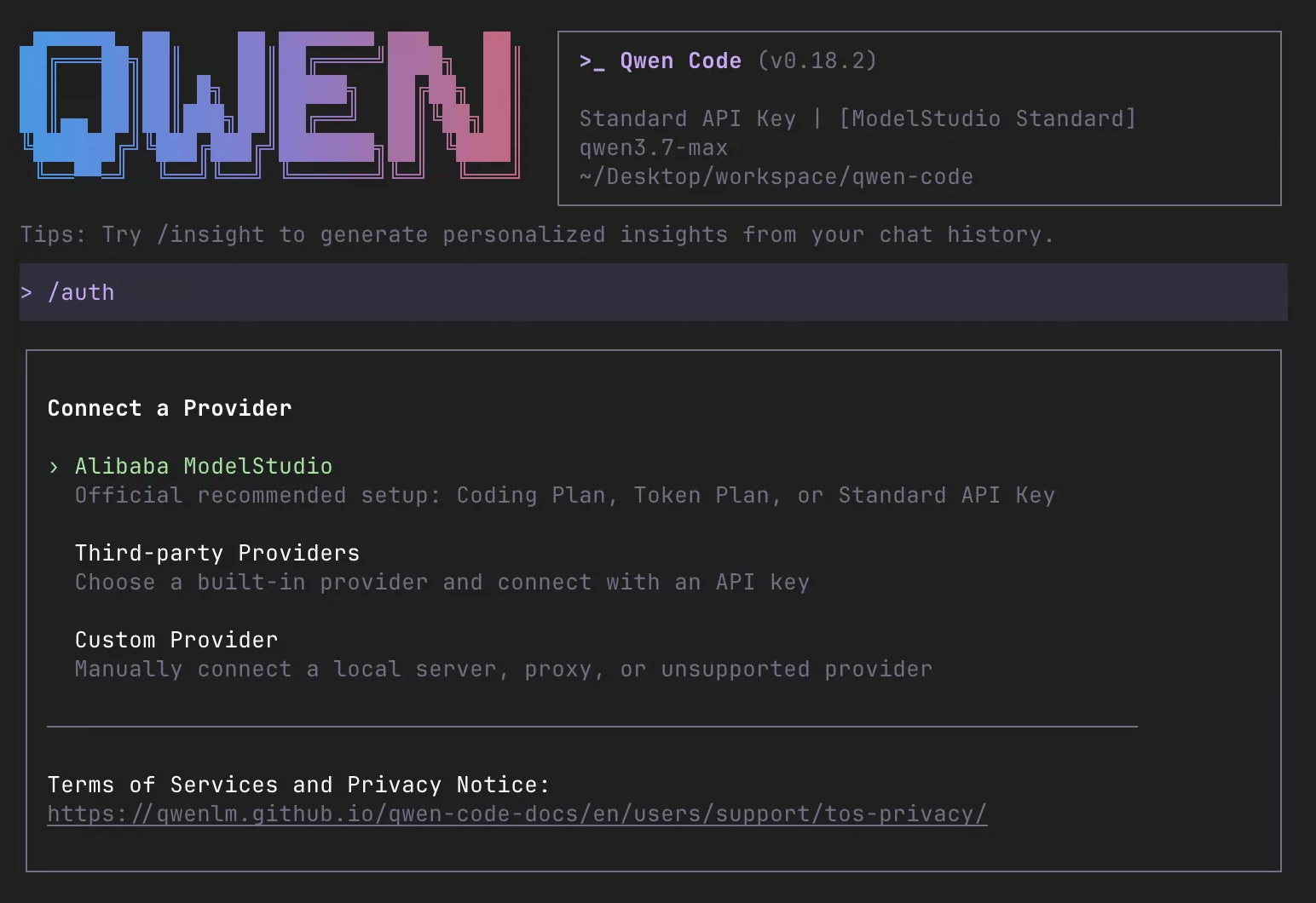 Qwen Code terminal interface
Official image from the Qwen Code repository. The model shown is only an example, not a fixed default.
What Qwen Code is and what it is good for
Think of Qwen Code as a colleague with access to the project folder who talks with you in the terminal. You can ask it to explain an unfamiliar codebase, find the cause of an error, write tests, rewrite old code, or review your changes before a commit. It finds the relevant files itself, so you do not paste code into a chat window by hand.
Three things set it apart:
- It is open source: the code is released under the Apache 2.0 licence. It started from Google's Gemini CLI, but has been developed independently since version
0.1.
- It is not locked to one provider: according to the repository's front page, it works with OpenAI, Anthropic, Gemini and Qwen APIs, and accepts local models through Ollama or vLLM.
- It is not only a terminal tool: there are VS Code, Zed and JetBrains integrations, a desktop app, an experimental web interface and SDKs. This guide focuses on the terminal version.
Keep one point in mind from the start: Qwen Code is not itself an AI model. It is the harness that connects a model to your project. The quality of the work depends heavily on the model you choose, and because it runs commands on your machine, controlling its permissions is your job.
Before you install: system, Node.js and a model provider
According to the quickstart guide and the authentication page, have these ready:
- Operating system: the official installer has one command for macOS and Linux and another for Windows.
- Node.js: if you install through npm, or if the standalone installer has no ready-made package for your system and falls back to npm, you need Node.js 22 or later.
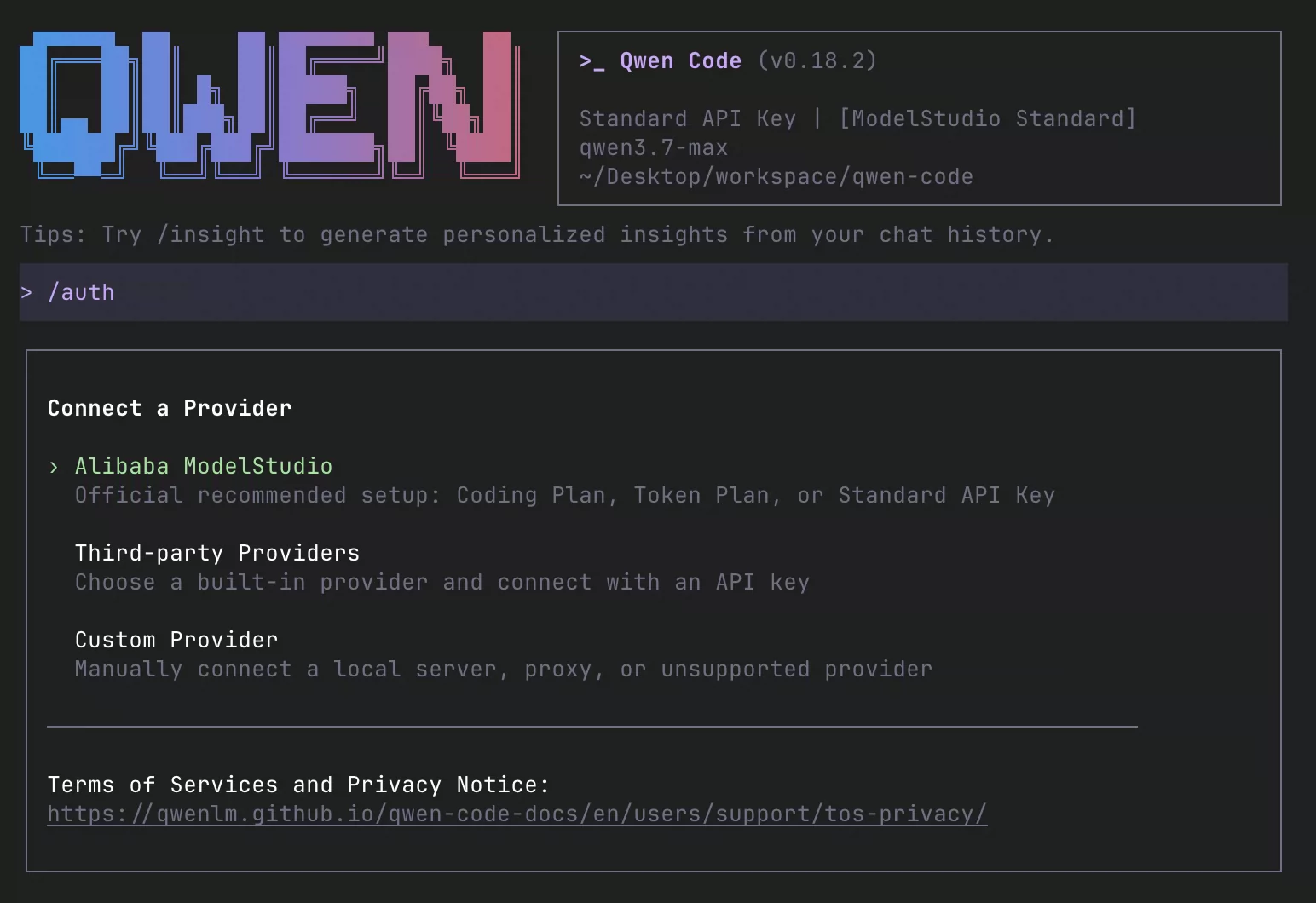
- A model provider: the sign-in menu has three options. The first is Alibaba ModelStudio, which the documentation calls the recommended setup and which covers the Coding Plan, the Token Plan, or a standard API key. The second is a set of built-in providers such as DeepSeek, Z.AI, Kimi and OpenRouter. The third is Custom Provider, for a local server, a proxy, or any other compatible service.
- The old free sign-in: the free tier for Qwen OAuth sign-in was discontinued on 15 April 2026. Tutorials that still promise free sign-in with a qwen.ai account are out of date.
Installing Qwen Code on macOS, Linux and Windows
The documentation recommends the standalone installer. On macOS or Linux, run this in a terminal:
curl -fsSL https://qwen-code-assets.oss-cn-hangzhou.aliyuncs.com/installation/install-qwen-standalone.sh | bash
On Windows, in PowerShell:
irm https://qwen-code-assets.oss-cn-hangzhou.aliyuncs.com/installation/install-qwen-standalone.ps1 | iex
Two other routes are documented:
# npm (requires Node.js 22 or later)
npm install -g @qwen-code/qwen-code@latest

# Homebrew (macOS or Linux)
brew install qwen-code
After installing, close the terminal and open it again so the qwen command is on your path. For a server without open internet access, the documentation also covers offline installation: download the release archive separately, keep the SHA256SUMS file next to it, and run the installer with the --archive PATH option.
To check the install:
qwen --version
This prints the version number. Inside a session, the /doctor command checks the install, the environment and the sign-in settings.
To update, if you used the standalone installer, run the same install command again or run qwen update. If you used npm, run npm install -g @qwen-code/qwen-code@latest again. Automatic updates at startup are controlled by the general.enableAutoUpdate setting; for a team it is better to turn them off and test each new version first.
Your first session: connecting a model and a few read-only requests
Go to your project folder, make sure there are no unsaved changes, and start Qwen Code:
cd path/to/your-project
git status
qwen
The first time, Qwen Code asks you to choose a model provider. Whenever you want to change that choice, type /auth inside a session. If you want to connect to a model on your own server, the settings are in a separate section further down, and once they are in place you no longer need the sign-in menu.
At the start, put the tool in plan mode so it only reads and changes nothing. The /plan command does this, and /plan exit returns you to the previous mode. Then ask a few simple questions:
- "What does this repository do? Tell me which file to start from to understand it."
- "What are the build and test commands for this project? Just tell me, don't run them yet."
- "Which parts of the code deal with user sign-in and session storage?"
To add a specific file to the conversation, write its path with @, for example @src/auth/login.ts, followed by your question. How well Persian is understood and answered depends on the model you connected; the /language command sets the interface language and the model's reply language.
Before the first real change, the project should be under git and git status should show no unsaved changes. That way every edit Qwen Code makes is visible and reversible.
QWEN.md: the project's standing instructions
Every Qwen Code session starts with an empty memory. According to the memory guide, QWEN.md is where you write the project's fixed rules once so they are read at the start of every session. The simplest start is the /init command: it examines the project and writes a first QWEN.md with the build and test commands and the conventions it found. If the file already exists, it suggests additions instead of overwriting it.
The file can live in three places:
QWEN.md at the project root: shared team rules that go into git.~/.qwen/QWEN.md: your personal preferences, read in every project..qwen/QWEN.local.md: your private notes for this project. Qwen Code does not create a .gitignore entry for it, so you must keep it out of git yourself.
If your repository already has an AGENTS.md file for other tools, Qwen Code reads that too, so there is no need to duplicate instructions. A short QWEN.md example:
# Project rules
- Install: pnpm install
- Run one test file: pnpm vitest run path/to/file.test.ts
- API handlers live in src/server/routes; keep them thin
- Ask before touching anything under db/migrations
- Persian UI text lives in src/i18n/fa.json
- Finished means: tests pass and the diff was reviewed
Keep the file short and precise. The documentation says plainly that the longer it gets, the less reliably it is followed, and that you should not repeat what the model can find by reading the code. Writing @README.md or @docs/git-workflow.md inside the file loads those files too. Remember that QWEN.md is guidance, not a lock; block anything that must never happen with permission rules, and never put passwords or keys in this file.
Approval modes: when Qwen Code asks you first
The approval modes guide describes five modes:
| Mode | File edits | Shell commands | Good for |
|---|
plan | None, read-only | Not run | Understanding a project and planning a large change |
default (Ask Permissions) | With your approval | With your approval | Unfamiliar repositories and sensitive systems |
auto-edit | Without asking | With your approval | Everyday work on code |
auto | A classifier model decides | A classifier model decides | Long sessions with less supervision |
yolo | Without asking | Without asking | Only isolated, disposable environments |
According to the settings reference, the default value of tools.approvalMode in the current version is auto. In that mode, a second language model reviews each command, network call and edit outside the project folder, and approves it for you if it judges it safe. It leans towards blocking when unsure, but its judgement can still be wrong. For an unfamiliar repository or a sensitive project, choose default so it asks before every edit and every command.
Inside a session, Shift+Tab (Tab on Windows) cycles through the modes in the order plan, default, auto-edit, auto and yolo, and the current mode shows in the status bar. The /approval-mode command changes the mode for the current session only. For standing rules, put this example in the project's .qwen/settings.json:
{
  "tools": {
    "approvalMode": "default"
  },
  "permissions": {
    "allow": ["Bash(npm run *)", "Bash(git diff *)"],
    "ask": ["Bash(git push *)"],
    "deny": ["Read(.env)", "Bash(rm -rf *)"]
  }
}
Rules are applied in this order of priority: deny beats ask, and ask beats allow. deny rules apply even in auto mode, before the classifier runs. The /permissions command lets you view and edit the same rules without opening the file.
Two more safety points. yolo mode does not turn on a sandbox by itself, so commands run with your account's full access. The Trusted Folders feature is off by default; if you turn it on with security.folderTrust.enabled in your user settings, Qwen Code will not load a project's .qwen/settings.json or its .env files in a folder you have not trusted. For a deeper discussion, see AI tool permission security.
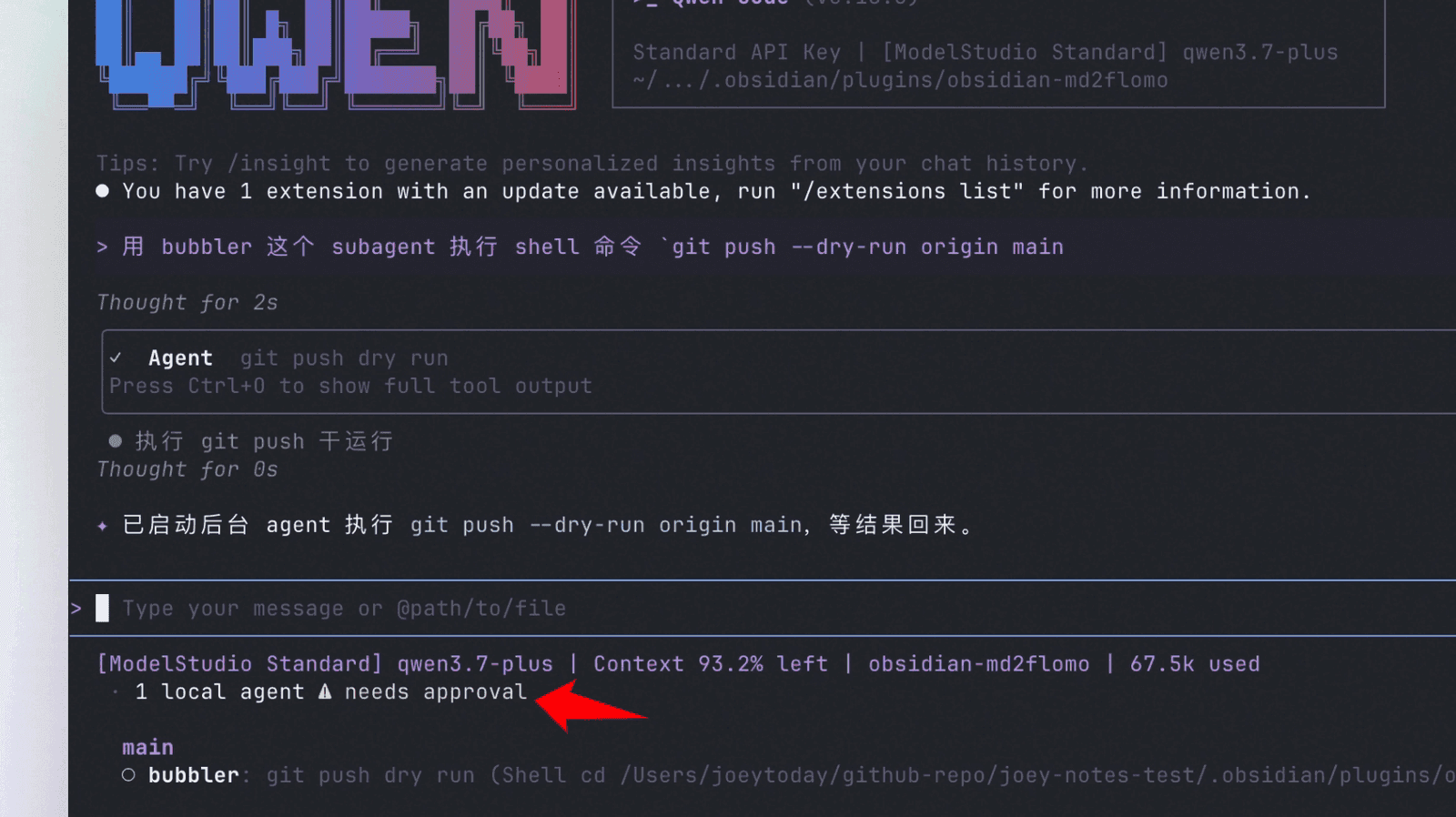 Qwen Code subagent waiting for user approval
Official Qwen Code image: a background subagent is waiting for the user's approval and cannot quietly skip it.
Everyday commands inside a session
Any message that starts with / is a command. These are the most useful; the full list is on the commands page:
| Command | Use |
|---|
/init | Create a first QWEN.md for the project |
/auth | Choose or change the model provider |
/model | See the configured models and switch model |
/plan | Enter plan mode, or leave it with /plan exit |
/approval-mode | Change the approval mode for this session |
/permissions | Manage permission rules |
/compress | Summarise the conversation to free working memory |
/clear | Start a fresh conversation with an empty memory |
/context | See what is filling the working memory |
/diff | See uncommitted changes and per-turn changes |
/restore | Revert files to their state before a tool call ran |
/rewind | Roll the conversation back to an earlier turn |
/resume | Continue an earlier conversation |
/review | Review changes with several agents in parallel |
/stats | See token usage and estimated cost |
/doctor | Diagnose the install, environment and sign-in settings |
When a conversation gets long and answers get weaker, /compress or a fresh start with /clear usually beats carrying on. After either, restate the main constraints of the task.
How to ask Qwen Code for work
A good request makes clear what exactly is wrong, where the change is confined, what must not change, and how we will know the work is right. Compare these two:
- Vague: "Fix the sign-up form."
- Clear: "When a mobile number does not start with zero, the sign-up form shows a confusing error. First find and explain the cause. Then make the smallest possible fix, only in the src/auth folder, and make the error message clear and in Persian. Do not change how the user is saved. At the end, run that area's tests and tell me what was not tested."
The second request leaves less to guesswork and gives you a yardstick for the result. For bigger tasks, this order works:
- Use
/plan with a description of the task and ask Qwen Code to investigate and propose a plan first.
- Read the plan and correct it if needed. When you are convinced, leave plan mode with
/plan exit.
- Let it make the change and run the related tests.
- Review the changes yourself with
/diff or git diff, just as you would review a new colleague's code.
- If the result is not good enough, revert the files with
/restore and make the request more precise.
- Make the commit yourself. If you use the
/commit command, read the suggested message before it is recorded.
The agent's closing summary describes the work; it does not prove it. The proof is the test output and the actual changes to the files. In areas such as sign-in, payments, personal data and database schema changes, do not drop human review.
Connecting outside tools with MCP
MCP is a standard that connects Qwen Code to other tools, such as a database, a task tracker or internal company documentation. According to the Qwen Code MCP guide, you add servers with qwen mcp add:
# Remote server over streamable HTTP
qwen mcp add --transport http my-server http://localhost:3000/mcp

# Local stdio server, saved in this project's .qwen/settings.json
qwen mcp add --scope project pythonTools -e DATABASE_URL=$DB_CONNECTION_STRING python -m my_mcp_server
In this command the default transport is stdio and the default scope is user, meaning ~/.qwen/settings.json, which applies to all your projects. With --scope project, the server is registered in that project's .qwen/settings.json, which you can share with the team. qwen mcp list shows server status, qwen mcp remove deletes a server, and inside a session /mcp lets you view and manage servers and their tools. If you have already set up MCP servers for Claude Code, /import-config claude-code brings them in.
Every MCP server widens what the agent can reach. Use --include-tools to expose only the tools each server needs, and use --trust, which removes confirmations, only for a server whose maker you know well. A server that reads web pages or email can carry malicious instructions into the session. We cover the secure architecture for these connections in MCP integration architecture.
Running unattended with qwen -p
Once a task has worked a few times interactively, you can run it from a script or a CI pipeline. According to the headless mode guide, the -p flag runs the request, prints the answer and exits:
# One-off question
qwen -p "Summarize what src/billing does and list its entry points"

# Pipe a log in and get JSON back
cat build.log | qwen -p "Why did this build fail?" --output-format json

# Read-only review with hard limits on turns and time
qwen -p "Review the changes on this branch for bugs" --approval-mode plan --max-session-turns 20 --max-wall-time 10m
A few more flags help: --continue resumes the latest session for this project, --resume picks up a specific session by ID, -m sets the model for this run, and --max-tool-calls caps the number of tool calls. A run that exceeds the turn cap stops with exit code 53, and one that exceeds the time or tool-call budget stops with exit code 55, so a CI script can tell why it stopped.
In an unattended run nobody sees the permission prompts. Do not rely on the default; set the approval mode explicitly with --approval-mode. The documentation warns that --yolo does not enable a sandbox and that commands run with the same access as the process. Give the script no keys or production access, and review the output before merging it into the main branch.
Connecting Qwen Code to a model on your own server (Ollama or vLLM)
Qwen Code sends your code and requests to whichever model you connect it to. The Qwen Code terms of service and privacy page also says that when you use an API key, that provider's terms and data retention policy apply. Running an open model on your own server removes that dependency: your code stays inside your network, heavy use costs a fixed server bill instead of a per-token charge, and you decide which model version runs and when it changes. Qwen Code was built from the start to connect to OpenAI-compatible interfaces, so this is straightforward. To choose a model, read Qwen3.8, GLM-5.2 and DeepSeek-V4 for coding, and if you also want another open-source agent, see the OpenCode tutorial.
According to the model providers page, most model servers, such as vLLM, Ollama and LM Studio, provide an OpenAI-compatible interface, and Qwen Code connects to them through the openai type. It takes three steps.
Step one: run the model on the server. For a start on a single server, Ollama is the simplest route. According to the Qwen3.8 page in the Ollama library, qwen3.8:27b is about 18 GB, has a 256K-token context window, and supports tools and thinking:
# On the model server
ollama run qwen3.8
Ollama serves its OpenAI-compatible interface at http://localhost:11434/v1. For teams, vLLM is usually the better choice, and its interface is normally at http://<server>:8000/v1. How to run each model with vLLM, and the hardware it needs, is in our model comparison article. Keep the model server reachable only on your internal network, and never open it to the internet without authentication.
Step two: point Qwen Code at the server. Put this in ~/.qwen/settings.json. The documentation recommends defining modelProviders in user settings rather than project settings:
{
  "env": {
    "OLLAMA_API_KEY": "ollama",
    "VLLM_API_KEY": "not-needed"
  },
  "modelProviders": {
    "openai": [
      {
        "id": "qwen3.8:27b",
        "name": "Qwen3.8 27B (Ollama, own server)",
        "envKey": "OLLAMA_API_KEY",
        "baseUrl": "http://localhost:11434/v1",
        "generationConfig": {
          "timeout": 300000,
          "contextWindowSize": 65536
        }
      },
      {
        "id": "Qwen/Qwen3.8-27B",
        "name": "Qwen3.8 27B (vLLM, team server)",
        "envKey": "VLLM_API_KEY",
        "baseUrl": "http://10.0.0.20:8000/v1"
      }
    ]
  },
  "security": {
    "auth": {
      "selectedType": "openai"
    }
  },
  "model": {
    "name": "qwen3.8:27b"
  },
  "privacy": {
    "usageStatisticsEnabled": false
  }
}
Each part of this file has a specific job:
id must be exactly the name the model server uses: in Ollama the model name such as qwen3.8:27b, and in vLLM the name the model was served under.envKey is the name of the environment variable that holds the key, not the key itself. The documentation says that for a server without authentication any placeholder, such as ollama or not-needed, is enough. If your vLLM server requires a real key, put it in ~/.qwen/.env instead of this file; values in the env section are stored as plain text, and the .env file takes precedence over them.security.auth.selectedType and model.name make Qwen Code start directly with this model, without the sign-in menu.generationConfig gives slow servers a longer timeout, and contextWindowSize tells Qwen Code how large the model's context window is. Match it to the value configured on the server.privacy.usageStatisticsEnabled turns off Qwen Code's own usage statistics.
Step three: check it. Run qwen, look at the configured models with /model, and check the connection with /doctor.
If you would rather not edit the settings file, there are two other routes. First, type /auth inside a session and choose Custom Provider, then the OpenAI-compatible type. Second, environment variables:
export OPENAI_API_KEY="not-needed"
export OPENAI_BASE_URL="http://10.0.0.20:8000/v1"
export OPENAI_MODEL="Qwen/Qwen3.8-27B"
qwen
With this route, always set OPENAI_API_KEY; according to the documentation, provider-specific keys do not select the connection type by themselves. If your server uses https with a self-signed certificate, the troubleshooting page recommends putting the certificate path in the NODE_EXTRA_CA_CERTS variable so Node.js trusts it.
Rolling out Qwen Code for a software team
Setting it up for ten developers is different from installing it on one laptop. Before you give Qwen Code to the whole team, write these points down:
- Model and server: state which model server the team connects to, and make sure that choice suits your organisation on cost, quality and data location;
- One instruction file in git: a short
QWEN.md or AGENTS.md with the build and test commands and the things the agent must not do;
- A shared permission policy:
default mode and deny rules in the project's .qwen/settings.json; if the policy must hold on every machine, a system settings file such as /etc/qwen-code/settings.json overrides user and project settings;
- A pinned tool version: automatic updates off, and each new version tried on a pilot project first;
- A review rule: no change merges without human review, especially in financial and security code;
- A spending cap: cap the monthly cost of the model server or the service you connect to in toman, and track each person's usage with
/stats;
- Before and after: pick a few real, recurring team tasks and measure their time and quality before and after the rollout.
If you want to set up Qwen Code for your organisation's software team on a model that runs on your own server, with clear access and review rules, talk to us: call +98 901 555 5651 or message us on WhatsApp. You can also read about the service on the AI and coding-agent training for teams page.
Source Notes (reviewed 2026-09-28)
Every command and setting in this guide was checked on that date against these official pages: