AI Tutorials
Grok Bot: Build a One-Person AI Company Safely
A practical guide to Grok Bot's shared computer, role charters, routines, multi-agent handoffs, pricing, evidence, and safety boundaries.
Read MoreA practical OpenClaw guide: installing the Gateway on your own machine, workspace files, permission modes, Telegram and WhatsApp, and connecting a model on your own server.

OpenClaw is an open-source AI assistant that runs on your own computer or server. At its centre is a program called the Gateway, which stays running, connects to a language model, and takes your messages from a web dashboard, the terminal, or messaging apps such as Telegram and WhatsApp and hands them to the agent. The agent can read and write files, run commands, drive a browser and do scheduled work, but only as far as you allow it.
This guide goes step by step: installing, a first conversation, the agent's workspace files, setting permissions, connecting Telegram and WhatsApp, the everyday commands, connecting outside tools, and running it unattended. Every command and name was checked on 28 September 2026 against the OpenClaw getting started guide and the official repository on GitHub. The project changes quickly, so if a command behaves differently, check the linked documentation page.
 Official OpenClaw logo and wordmark
Official artwork from the OpenClaw repository.
Think of OpenClaw as an assistant that lives on your machine and that you can talk to from several places. To predict how it behaves, learn its five main parts:
18789 and only on the machine itself, not on the network.~/.openclaw/workspace.OpenClaw's main use is an always-on assistant: summarising files, drafting reports, answering in a messaging app, and repeating tasks at set times. If your main job is programming inside a code repository, more specialised tools such as Claude Code, Codex or OpenCode fit better. OpenClaw can work with code too, and can even reuse your existing Claude Code or Codex sign-in to reach a model, but it is designed as a long-lived assistant.
Know one security point from the start. The official documentation treats each Gateway as one "trust boundary": one person, or a team whose members trust each other. Anyone who can message an agent that has tools shares that agent's authority. So do not connect OpenClaw to a public group or to people you do not trust.
According to the OpenClaw install page, you need:
24.16 or later, or 26.1 or later; Node 26 is recommended. If Node.js is missing, the install script installs it for you: Node 26 on macOS and Node 24 on Linux.The recommended route is the install script. It detects your operating system, installs Node.js if needed, installs OpenClaw itself and starts onboarding. On macOS, Linux or WSL2, run:
curl -fsSL https://openclaw.ai/install.sh | bash
On Windows, in PowerShell:
iwr -useb https://openclaw.ai/install.ps1 | iex
If you manage Node.js yourself, you can use npm. The --allow-scripts=openclaw option is for npm 12 and npm 11.16 or later; on older npm versions, run the same command without it:
npm install -g openclaw@latest --allow-scripts=openclaw
openclaw onboard --install-daemon
Any script piped from the internet straight into a shell is executable code. Read it before running it, especially on a machine that holds personal files or keys.
After installation, onboarding opens automatically. Quick start finds and tests your existing model access, saves the settings and opens the web dashboard. Custom setup asks about every step in turn. In quick mode the Gateway keeps running in that terminal window. To keep it running in the background and start it with the machine, stop it with Ctrl+C and install the service:
openclaw gateway install
This creates a LaunchAgent on macOS, a systemd user service on Linux and WSL2, and a Scheduled Task on Windows. Now check the install:
openclaw --version
openclaw doctor
openclaw gateway status
The first command prints the version, the second finds configuration problems, and the third should show the Gateway listening on port 18789. If your terminal does not recognise openclaw, it is almost always a PATH problem: npm's global program folder is not on your shell's search path.
To update, run openclaw update. With openclaw update --dry-run you can see what would change before it happens. Before any major update, take a backup of the current state with openclaw backup create, and afterwards run the security audit described below again.
Open the web dashboard:
openclaw dashboard
If the page opens in your browser, everything is working. If you prefer the terminal, openclaw tui opens the same conversation there.
At the start, add no channels, plugins, browser control or scheduled work. First see how the agent behaves with one model and one workspace. A few good first requests:
OpenClaw accepts requests in Persian, but the quality of Persian answers depends on the model you connected. Do not settle for a polite reply; check in the dashboard which tools were actually called.
If git is installed, a brand-new workspace is made into a git repository automatically. Before the first request that is meant to change a file, run git status inside that folder to make sure nothing is left unsaved. That way every change the agent makes is visible and, if needed, reversible. If something does not work, openclaw triage runs read-only checks and prepares a report with passwords and tokens stripped out; openclaw doctor shows the same findings directly.
According to the agent workspace page, OpenClaw expects these files inside the workspace:
| File | Purpose |
|---|---|
AGENTS.md | The main instructions: rules, priorities and how to use memory. Read at the start of every session |
SOUL.md | The agent's persona, tone and boundaries |
USER.md | Your stable preferences; optional, with its own 4,000-character cap |
IDENTITY.md | The agent's name and vibe, created on first run |
BOOTSTRAP.md | The first-run routine; delete it once finished |
BOOT.md | A checklist run when the Gateway starts; only when the boot-md hook is enabled |
MEMORY.md | Curated long-term memory; only loaded in the main private session |
memory/YYYY-MM-DD.md | Daily memory log |
skills/ | Skills specific to this workspace |
In current versions, notes about local tools go in a section headed ## Tools inside AGENTS.md itself. A short example:
# Operating rules
- Reply in Persian unless asked otherwise
- Read files freely; ask before deleting, moving or sending anything
- Never message anyone except the owner without explicit approval
- Drafts go in drafts/; never overwrite files in archive/
- If a task needs a password or key, stop and ask

## Tools
- Project notes live in notes/; the weekly report template is templates/weekly.md
A few points for writing these files:
## Tools section is guidance only and does not control which tools are available. Anything that must never happen is blocked through permission settings.~/.openclaw/openclaw.json and credentials in ~/.openclaw/credentials/. Do not write keys, tokens or passwords in workspace files. The documentation suggests backing the workspace up to a private git repository.AGENTS.md as a programme: its scope of authority, when it runs, what needs human approval, and when it must stop and ask. The documentation calls these "standing orders".OpenClaw's defaults for incoming messages are cautious. The Gateway listens only on the machine itself, an unknown sender on most messaging apps gets a pairing code instead of an answer, and in groups access is limited to an allowlist and the agent usually answers only when mentioned. For running commands, though, the default is set for a single trusted user: according to the OpenClaw trust model, running commands on the Gateway's machine is allowed without prompts. In other words, unless you change something, your agent can run commands on the system without asking.
This behaviour is set with the tools.exec.mode key. According to the permission modes page, these modes exist:
| Mode | Behaviour | Good for |
|---|---|---|
deny | No commands run on the system | An agent that only chats |
allowlist | Only allowlisted commands run; others are silently denied | A known, limited command set |
ask | Allowlisted commands run; for the rest, you are asked | When you want to see every new command yourself |
auto | Like ask, but an automatic reviewer checks a new command and allows it once, denies it, or hands the decision to you | Everyday work with sensible oversight |
full | Commands run without ordinary prompts | Only a system you fully trust |
The documentation recommends auto for agents that work with code. In this mode, if the reviewer denies three times in a row, the decision goes to a human. Setting and checking it looks like this:
openclaw config set tools.exec.mode auto
openclaw approvals get
openclaw gateway restart
openclaw exec-policy show
If you want to start stricter, openclaw exec-policy preset cautious limits commands to the allowlist and asks about the rest; openclaw exec-policy preset deny-all blocks command execution entirely.
For an agent that will talk to other people in a messaging app, the hardened baseline page suggests this starting point. It goes in ~/.openclaw/openclaw.json:
{
  gateway: {
    mode: "local",
    bind: "loopback",
    auth: { mode: "token", token: "replace-with-long-random-token" },
  },
  session: {
    dmScope: "per-channel-peer",
  },
  tools: {
    profile: "messaging",
    deny: ["group:automation", "group:runtime", "group:fs", "sessions_spawn", "sessions_send"],
    fs: { workspaceOnly: true },
    exec: { security: "deny", ask: "always" },
    elevated: { enabled: false },
    sessions: { visibility: "agent" },
    agentToAgent: { enabled: false },
  },
  channels: {
    whatsapp: { dmPolicy: "pairing", groups: { "*": { requireMention: true } } },
  },
}
This keeps the Gateway on the machine itself behind a token, keeps each person's private conversation separate from everyone else's, blocks the file, command and scheduling tools, cuts agents off from each other's sessions, and in WhatsApp groups answers only when the agent is mentioned. From there, open tools one at a time for an agent you trust. Also note that onboarding selects the full tool profile if you have not set a profile yourself.
Sandboxing is off by default. With the agents.defaults.sandbox.mode key you can set it to non-main, so every session except your own main one, including group sessions, runs in a sandbox (the default backend is Docker), or to all so every session is sandboxed. The workspaceAccess key decides whether the sandbox cannot see the workspace at all (none, the default), can only read it (ro), or can read and write it (rw).
After every configuration change, run the security audit:
openclaw security audit
openclaw security audit --deep
--deep also probes the running Gateway. The --fix option is deliberately narrow: it only turns open group policies into allowlists and tightens permissions on configuration and state files. Deciding who may reach the agent stays with you. For a deeper discussion, see AI tool permission security.
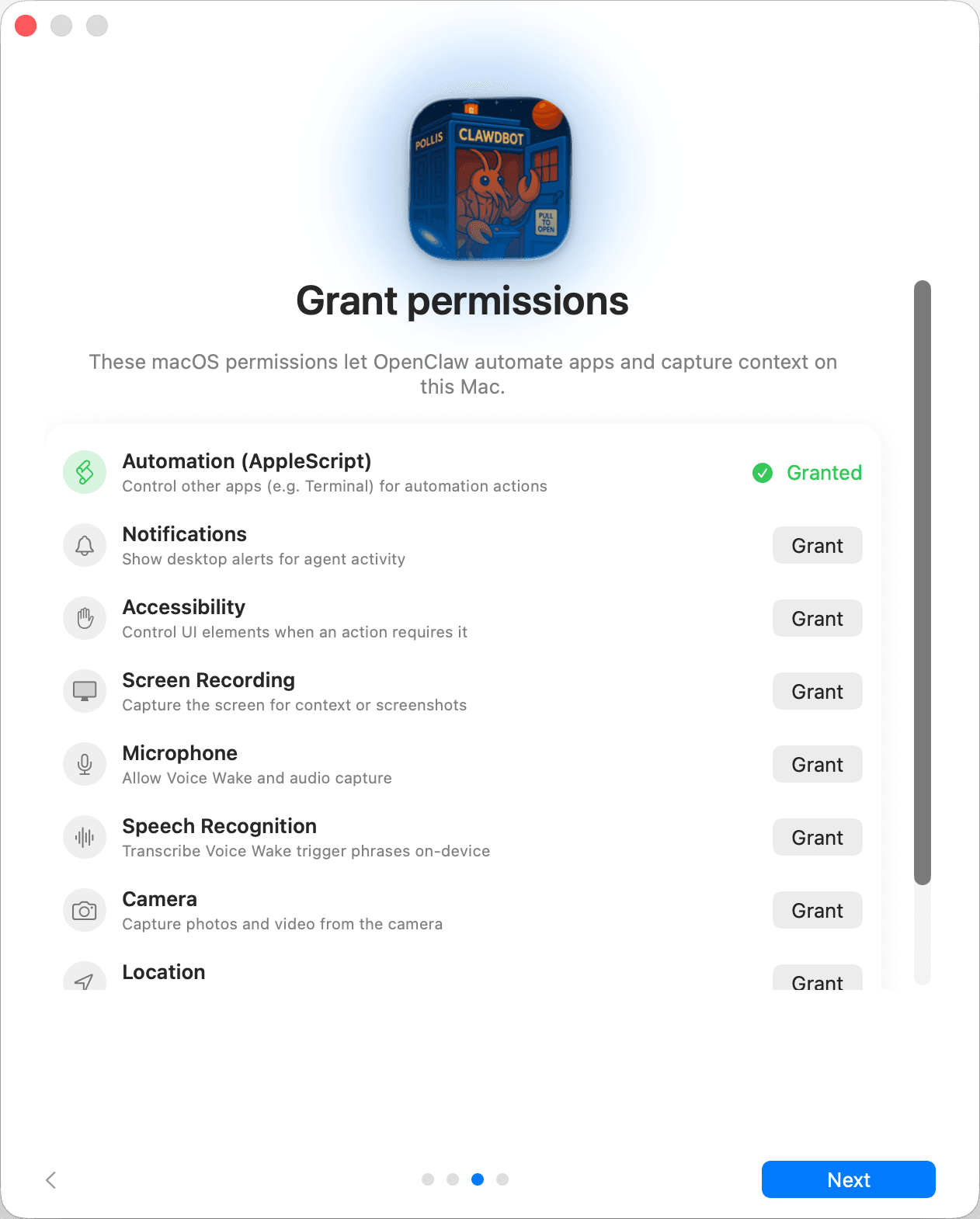 Official OpenClaw macOS permissions screen
Official screenshot from the OpenClaw macOS app documentation.
If you use the macOS app, it may ask for Automation, Notifications, Accessibility, Screen Recording, Microphone, Speech Recognition, Camera or Location permission for different features. These are granted from the dashboard under Settings and then Permissions. Do not approve them all at once; grant only what a specific, tested task needs. Accessibility and screen recording give the agent reach over your whole screen and your apps.
According to the documentation, Telegram is the fastest channel to start with, because it needs only a bot token and no plugin install. The Telegram setup steps are:
@BotFather, making sure the handle is exactly that. Send /newbot and keep the token it gives you.openclaw channels add --channel telegram --token <bot-token>
openclaw channels status --probe
openclaw pairing list telegram
openclaw pairing approve telegram <CODE>
The pairing code is eight characters long and expires after one hour. Each channel account holds at most three pending requests. One important point: if no command owner has been set yet, the first sender you approve from the command line automatically becomes the owner of privileged commands. So approve yourself first, not someone else.
WhatsApp works through WhatsApp Web as a linked device and is installed as a separate plugin. openclaw channels add --channel whatsapp offers to install the plugin, and linking is done by scanning a QR code. The documentation recommends running the assistant on a number separate from your personal one, so your private conversations stay apart from automated work.
After connecting each channel, test these cases: a message from your own account, a message from an unknown account, mentioning the agent in a group, and an attachment with malicious instructions written inside it. Also know that an agent with the message tool can, by default, send to other conversations and messaging apps too, unless you restrict it.
All of these commands appear in the OpenClaw CLI reference:
| Command | Use |
|---|---|
openclaw onboard | Run onboarding, or run it again |
openclaw configure | Change part of the setup: model, Gateway, channel, plugin or skill |
openclaw dashboard | Open the web dashboard |
openclaw tui | Talk to the agent in the terminal |
openclaw gateway status | See the Gateway's status |
openclaw gateway restart | Restart the Gateway after a configuration change |
openclaw status | Overall status and usage report |
openclaw logs --follow | Follow the Gateway logs live |
openclaw doctor | Find and fix configuration problems |
openclaw triage | Read-only diagnosis with a report stripped of secrets |
openclaw security audit | Security audit of the configuration |
openclaw models list | List available models |
openclaw models set <model-or-alias> | Change the default model |
openclaw channels add | Add a messaging channel |
openclaw pairing approve <channel> <CODE> | Approve a new sender |
openclaw backup create | Take a backup |
openclaw update | Update |
A good request makes four things clear: what exactly the job is, which files and tools it is limited to, what must not happen, and how we will know it was done right. Compare these two:
The first request does not say where the report comes from, where it is saved or who it goes to; an agent with a message tool might decide for itself. For tasks that will repeat, this order works:
git diff.AGENTS.md.The agent's closing summary describes the work; it does not prove it. The proof is the files actually written and the list of tools actually called.
MCP is a standard that connects an agent to other tools, such as a database, a task tracker or internal documentation. OpenClaw keeps its list of MCP servers in its own configuration. According to the saved MCP servers page, a server that runs on the same machine is added like this:
openclaw mcp add memory --command npx --arg -y --arg @modelcontextprotocol/server-memory
And a remote server like this:
openclaw mcp set docs '{"url":"https://mcp.example.com","transport":"streamable-http"}'
add tests the connection before saving. openclaw mcp list shows the servers, openclaw mcp status --verbose shows their settings without connecting, and openclaw mcp probe tries a real connection. MCP tools are available to agents in the coding and messaging profiles, and the minimal profile hides them. The reverse also works: openclaw mcp serve turns OpenClaw itself into an MCP server so a tool like Claude Code can read channel conversations and send messages.
Skills are ready-made instructions that teach the agent how to do a task. Search with openclaw skills search "calendar" and install with openclaw skills install @owner/<slug>. A skill or plugin being listed on the ClawHub registry means it was published, not that it is safe. Before installing, look at who made it and what it contains, and after installing, run the deep security audit again. We cover the secure architecture for these connections in MCP integration architecture.
Once a task has worked a few times in the dashboard, you can run it from a script or a CI pipeline. According to the agent command reference, openclaw agent exec runs one complete agent turn without needing a Gateway:
# One-off task in the current folder
openclaw agent exec "Run the focused tests and fix failures"

# Task text from a file, scoped to a repo folder
openclaw agent exec --message-file task.md --cwd ./repo

# Pipe the task in and get a JSON envelope back
cat task.md | openclaw agent exec --message-file - --json
Know a few default behaviours of this command. It creates a temporary state folder and removes it afterwards. It does not read the workspace instruction files, so standing orders do not apply. Sandboxing is off, the coding tool profile is selected, file tools are limited to the --cwd folder, and commands run under the full execution policy, unless your own configuration says otherwise. The default time limit is 600 seconds. Exit code 0 means success, 1 an error and 2 a timeout.
For reproducible CI runs, pass a specific configuration file with --config <path>, or ignore the machine's configuration entirely with --isolated. Because nobody is there to see permission prompts, run it inside a container, give it no keys or production access, and review the output before merging it into the main branch.
 Official OpenClaw banner
OpenClaw does not have to talk to a cloud service. If you want your messages and files to stay inside your organisation, keep usage costs under your own control, or choose and swap the model yourself, you can connect it to an open-weight model running on your own server. OpenClaw officially supports this route. According to the local models page, any server with an OpenAI-style /v1/chat/completions endpoint, such as vLLM, SGLang or MLX, connects with this setting in ~/.openclaw/openclaw.json:
{
  agents: {
    defaults: {
      model: { primary: "local/my-local-model" },
    },
  },
  models: {
    mode: "merge",
    providers: {
      local: {
        baseUrl: "http://127.0.0.1:8000/v1",
        apiKey: "sk-local",
        api: "openai-completions",
        timeoutSeconds: 300,
        models: [
          {
            id: "my-local-model",
            name: "Local Model",
            reasoning: false,
            input: ["text"],
            cost: { input: 0, output: 0, cacheRead: 0, cacheWrite: 0 },
            contextWindow: 120000,
            maxTokens: 8192,
          },
        ],
      },
    },
  },
}
Replace my-local-model with the real model ID on your server, and if the model runs on another machine on your internal network, change the baseUrl. merge mode means providers you configured earlier stay available too; if you do not want the agent to reach any other service, do not configure another provider, and check with openclaw models status that the primary and fallback models are the ones you expect. For Ollama there is a simpler route: after ollama pull and setting the OLLAMA_API_KEY variable to ollama-local, openclaw models list --provider ollama finds the models and openclaw models set ollama/<model> makes one the default. Note that OpenClaw talks to Ollama's native interface, and its address must not include /v1.
The documentation also gives two warnings. A local model does not have a cloud service's safety filters, so keep its tool permissions tighter. A model that answers a short question correctly can still fail a full agent turn with tools and history; measure it on your own real tasks before making it the default. To choose a model, see Qwen3.8, GLM-5.2 and DeepSeek-V4 for coding. If you want an agent for work inside a code repository, the OpenCode tutorial and the Qwen Code tutorial cover tools that support the same local-model route.
A personal assistant is different from one a team uses. Before you hand OpenClaw to colleagues, settle these points:
AGENTS.md in a private git repository, with rules, forbidden actions and stop conditions;auto or stricter for command execution, sandboxing for group sessions, and a security audit after every change;If you want to run an assistant like OpenClaw on your organisation's own server, with the model you choose, and with it clear from day one who can message it and what the agent will not do without approval, talk to us: call +98 901 555 5651 or message us on WhatsApp. You can also read about the service on the local AI on your own servers page.
Every command and setting in this guide was checked on that date against these official pages:
A practical guide to Grok Bot's shared computer, role charters, routines, multi-agent handoffs, pricing, evidence, and safety boundaries.
Read More
Every 24 hours is not every day at 9. A practical guide to preserving local-time intent, resolving missing or repeated hours, and preventing duplicate scheduled actions.
Read More
A field guide to atomic reservations, concurrent spend, approval binding, reconciliation, and hard economic limits for tool-using AI agents.
Read MoreIf you want the agents and automation in this guide working for your engineering team or business processes, start with a small pilot you can measure.